Two-Column Accordion Checkout Layout for Hyva Checkout
Requires Hyva Checkout version ^1.1.18 or higher
The Hyva Checkout two-column accordion layout replaces the default breadcrumb-based step navigation with collapsible accordion panels. Each checkout step renders as an expandable section, giving customers a single-page checkout feel while keeping the familiar step-by-step progression.
Preview
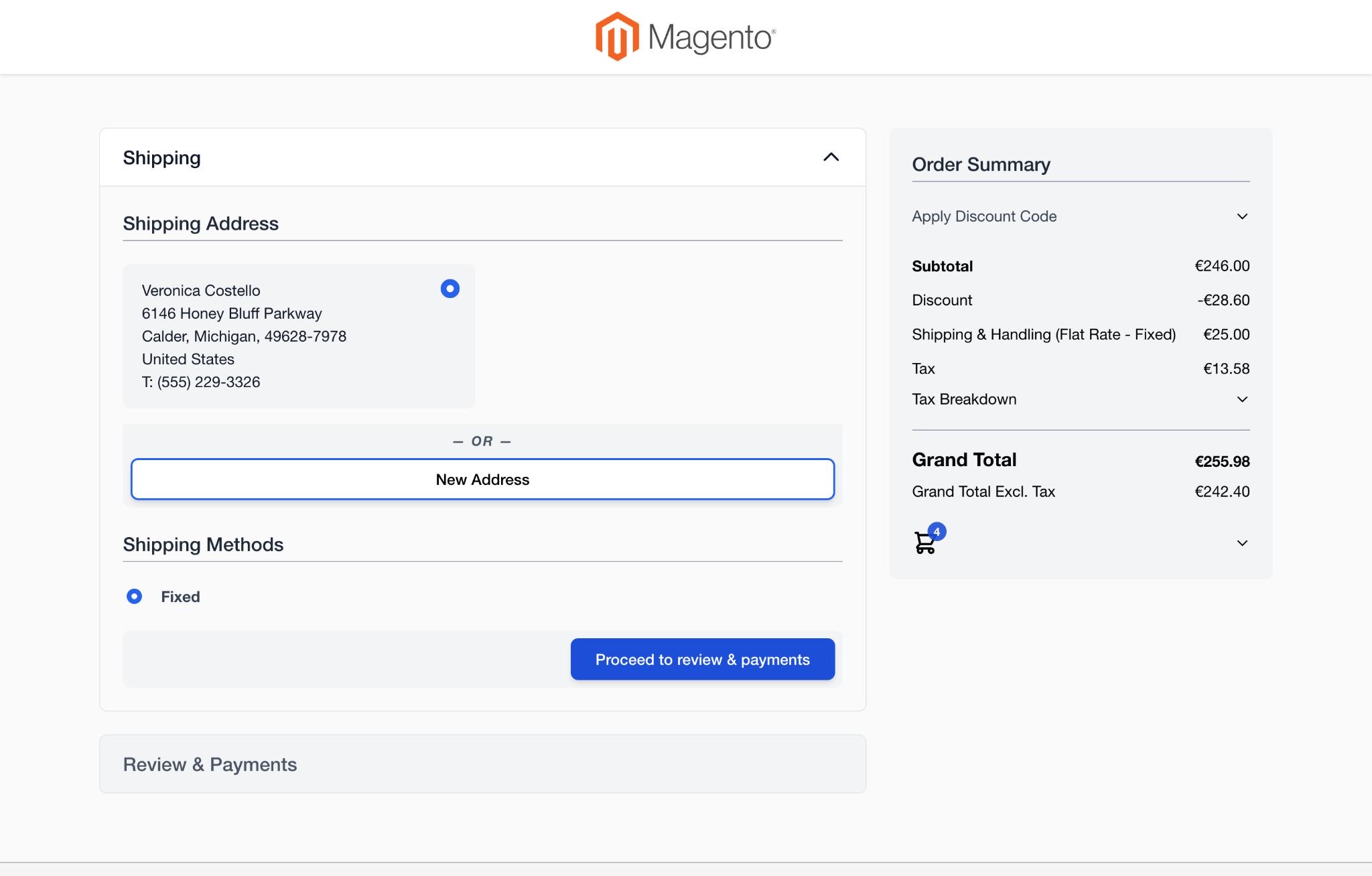
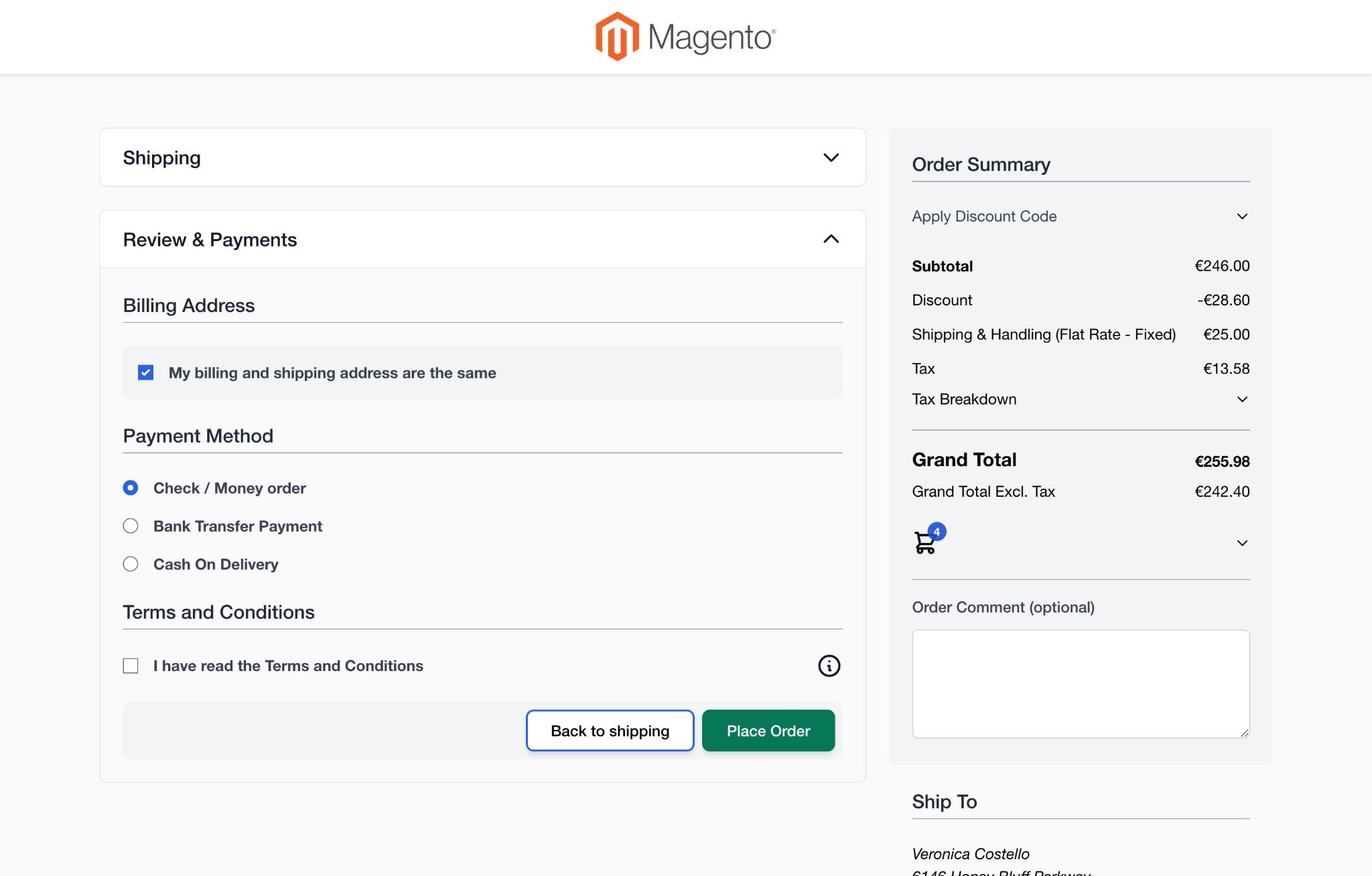
Creating the Accordion Layout XML Handle
To build the two-column accordion checkout, you first need a new Hyva Checkout layout handle. Store these files in either a custom module or your theme.
Create the layout file at view/frontend/layout/hyva_checkout_layout_accordion.xml. This layout extends the existing hyva_checkout_layout_2columns handle, swaps in the accordion template, and removes the default breadcrumbs block.
<?xml version="1.0"?>
<page
    xmlns:xsi="http://www.w3.org/2001/XMLSchema-instance"
    xsi:noNamespaceSchemaLocation="urn:magento:framework:View/Layout/etc/page_configuration.xsd"
>
    <!-- Inherit the two-column checkout base layout -->
    <update handle="hyva_checkout_layout_2columns"/>

    <body>
        <!-- Override the columns block with the accordion template -->
        <referenceBlock
            name="hyva.checkout.columns"
            template="Example_Module::layout/accordion.phtml"
        />

        <!-- Remove breadcrumbs because the accordion headers replace them.
             Note: this also removes the sign-in / registration button. -->
        <referenceBlock name="hyva.checkout.breadcrumbs" remove="true"/>
    </body>
</page>
Creating the Accordion PHTML Template
Next, create the accordion template at view/frontend/templates/layout/accordion.phtml. This template iterates over every available checkout step and renders each one as a collapsible accordion panel inside a two-column grid.
<?php

declare(strict_types=1);

use Hyva\Checkout\Magewire\Main as MagewireComponent;
use Hyva\Checkout\ViewModel\Main as ViewModel;
use Hyva\Checkout\ViewModel\Navigation;
use Hyva\Theme\Model\ViewModelRegistry;
use Hyva\Theme\ViewModel\LucideIcons;
use Magento\Framework\Escaper;
use Magento\Framework\View\Element\Template;

/** @var MagewireComponent $magewire */
/** @var ViewModelRegistry $viewModels */
/** @var Escaper $escaper */
/** @var Template $block */

/** @var ViewModel $viewModel */
$viewModel = $viewModels->require(ViewModel::class);

/** @var ViewModel $viewModel */
$navigatorViewModel = $viewModels->require(Navigation::class);

/** @var LucideIcons $lucideIcons */
$lucideIcons = $viewModels->require(LucideIcons::class);

// Determine the current active step so we can expand the right panel
$navigator = $navigatorViewModel->getNavigator();
$currentStep = $navigator->getActiveStep();
$checkout = $navigator->getActiveCheckout();
?>
<!-- Two-column wrapper: left column holds accordion steps, right column holds the sidebar -->
<div class="flex flex-col gap-6 lg:my-6 lg:flex-row lg:items-start">
    <!-- Left column: accordion step panels (2/3 width on desktop) -->
    <div class="w-full space-y-6 lg:w-2/3">
        <?php foreach ($checkout->getAvailableSteps() as $step): ?>
            <?php
                // Build a unique ID for the accordion panel's aria-controls
                $stepId = $checkout->getName() . '-step-' . $step->getName();
                $isActiveStep = $checkout->isComparison($step, $navigator->getActiveStep());
                $isActivePosition = $step->getPosition() === $currentStep->getPosition();
                // Allow navigation only to previous or current steps
                $canNavigateTo = $checkout->isStepBackwards($step, $currentStep) || $isActiveStep;
            ?>
            <!-- Individual accordion item with border styling -->
            <div class="border border-gray-200 text-gray-900 rounded-lg">
                <!-- Accordion header button: triggers step navigation via hyvaCheckout -->
                <button
                    type="button"
                    class="item group w-full flex gap-2 justify-between items-center bg-white px-6 py-4 text-xl font-medium rounded-lg aria-expanded:rounded-b-none disabled:text-gray-600 disabled:bg-gray-100 <?= $isActivePosition ? 'active' : 'completed' ?>"
                    <?php if ($isActivePosition): ?>
                        aria-current="step"
                    <?php endif ?>
                    <?php if (! $canNavigateTo): ?>
                        disabled
                    <?php endif ?>
                    aria-expanded="<?= $isActivePosition ? 'true' : 'false' ?>"
                    aria-controls="<?= $escaper->escapeHtmlAttr($stepId) ?>"
                    onclick="hyvaCheckout.navigation.stepTo('<?= $escaper->escapeJs($step->getRoute()) ?>', false)"
                >
                    <span><?= $escaper->escapeHtml($step->getLabel()) ?></span>
                    <?php if ($canNavigateTo): ?>
                        <!-- Chevron rotates 180 degrees when the panel is expanded -->
                        <span class="group-aria-expanded:rotate-180">
                            <?= $lucideIcons->chevronDownHtml('', 24, 24, ['aria-hidden' => 'true']) ?>
                        </span>
                    <?php endif ?>
                </button>

                <!-- Accordion panel body: only rendered for the active step -->
                <div id="<?= $escaper->escapeHtmlAttr($stepId) ?>" class="column column-main">
                    <?php if ($isActiveStep): ?>
                        <div class="space-y-6 p-6 border-t border-gray-200">
                            <?= $block->getChildHtml('column.main') ?>
                            <?= $block->getChildHtml('hyva.checkout.navigation') ?>
                        </div>
                    <?php endif ?>
                </div>
            </div>
        <?php endforeach ?>
    </div>

    <!-- Right column: order summary sidebar (1/3 width, sticky on desktop) -->
    <div class="column column-right w-full space-y-6 lg:w-1/3 lg:sticky lg:top-6">
        <?= $block->getChildHtml('column.right') ?>
    </div>
</div>
Activating the Accordion Layout in hyva_checkout.xml
Once both files are in place, you can activate the accordion layout by setting layout="accordion" in your hyva_checkout.xml configuration. The accordion layout only affects the visual presentation, so you can keep the rest of your checkout configuration intact.
The following hyva_checkout.xml example defines a new checkout named accordion that inherits from the default checkout and applies the accordion layout.
<?xml version="1.0"?>
<config
    xmlns:xsi="http://www.w3.org/2001/XMLSchema-instance"
    xsi:noNamespaceSchemaLocation="urn:magento:module:Hyva_Checkout:etc/hyva_checkout.xsd"
>
    <!-- Define a checkout that uses the accordion layout, inheriting from default -->
    <checkout name="accordion"
              label="Hyvä Accordion"
              layout="accordion"
              parent="default"
    />
</config>
For further details on hyva_checkout.xml configuration options, refer to the hyva_checkout.xml documentation.
Recommendations for Organizing Accordion Steps
The accordion layout hides breadcrumbs, which means adding extra steps no longer feels cluttered. Take advantage of this by splitting components into their own dedicated steps for a cleaner flow.
Move guest details into a separate step
Consider moving the Guest Details component (where customers enter their email address) into its own "Customer" step before the shipping step. You can accomplish this with a move directive inside the hyva_checkout_accordion_customer.xml layout XML handle.
Limitations of the Accordion Checkout Layout
No open/close transitions between steps
Each accordion panel functions as its own checkout step, similar to how steps load with visible breadcrumbs. The accordion layout only displays one step at a time because Hyva Checkout renders step content on demand. Pre-loading multiple steps simultaneously would require framework modifications that are not recommended.
Only the active step renders content
The accordion expands and collapses visually, but each panel's content is only rendered when that step is active. This is by design and keeps the checkout performant.