Dashboard Organization
Admin users can control the positioning and the sizing of the widgets in their dashboard by following these steps:
1. Enable "Edit Mode"
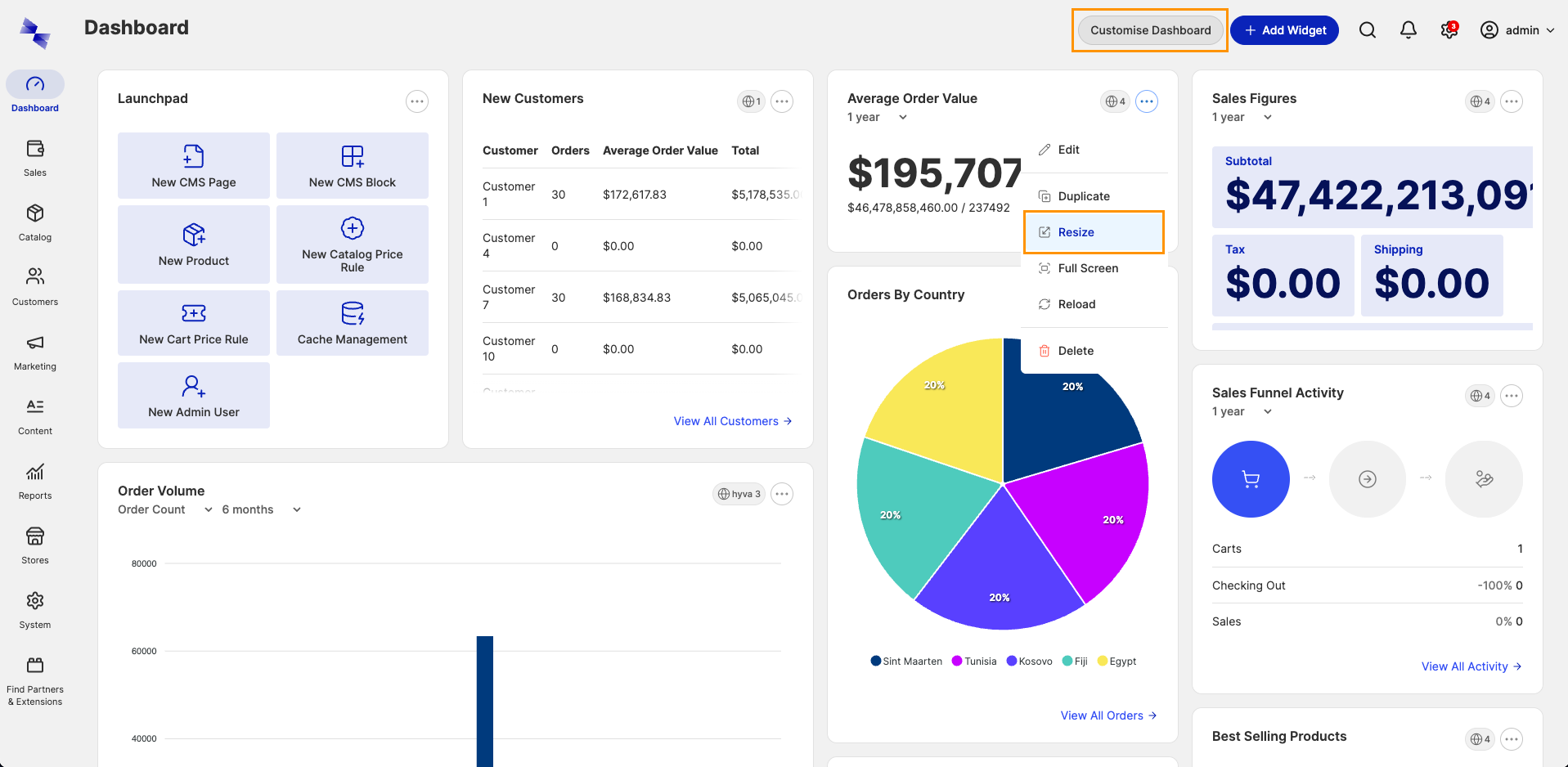
The dashboard's "Edit Mode" can be enabled by either:
- Clicking the
customize Dashboardbutton in the upper right corner of the dashboard. - Selecting the
Resizeoption from any of the widget action menus.
2. Organize the Dashboard
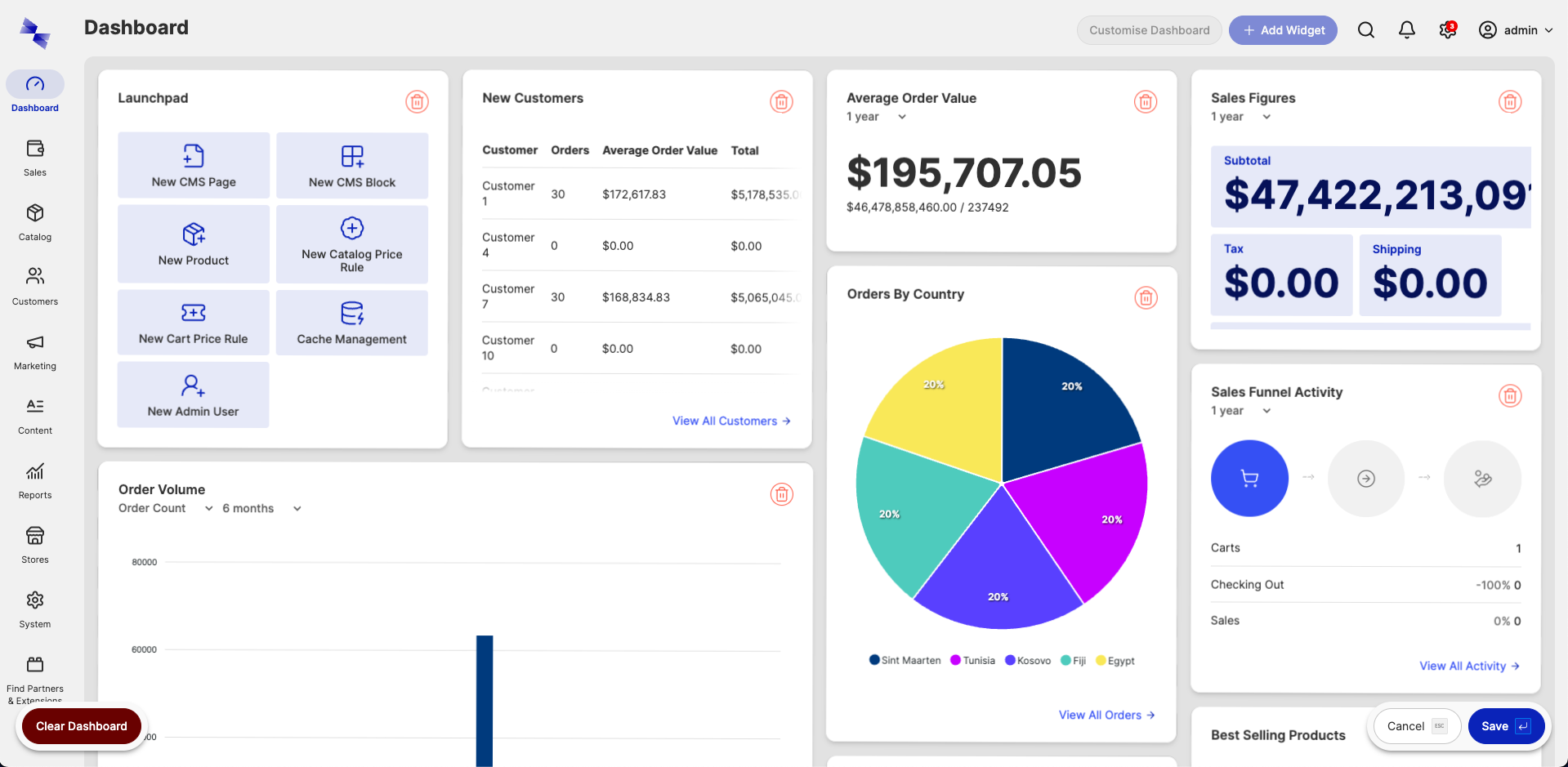
With "Edit Mode" enabled, the dashboard adopts a slightly different appearance to signify the change in operating mode. Widgets cannot be interacted with during editing.
Positioning
Each widget can be moved and repositioned within the dashboard by:
- Locating the widget to move.
- Clicking and holding somewhere within the widget.
- Dragging and dropping the widget into its new position.
Sizing
Each widget can have its width and height adjusted by:
- Hovering over the widget.
- Clicking and holding a corner to resize from.
- Dragging and dropping the corner(s) until the widget occupies the desired space.
Widget Sizing
Widget providers may dictate their widget(s) must maintain a minimum width or height - preventing admin users from decreasing dimensions below those points.
3. Save the Dashboard
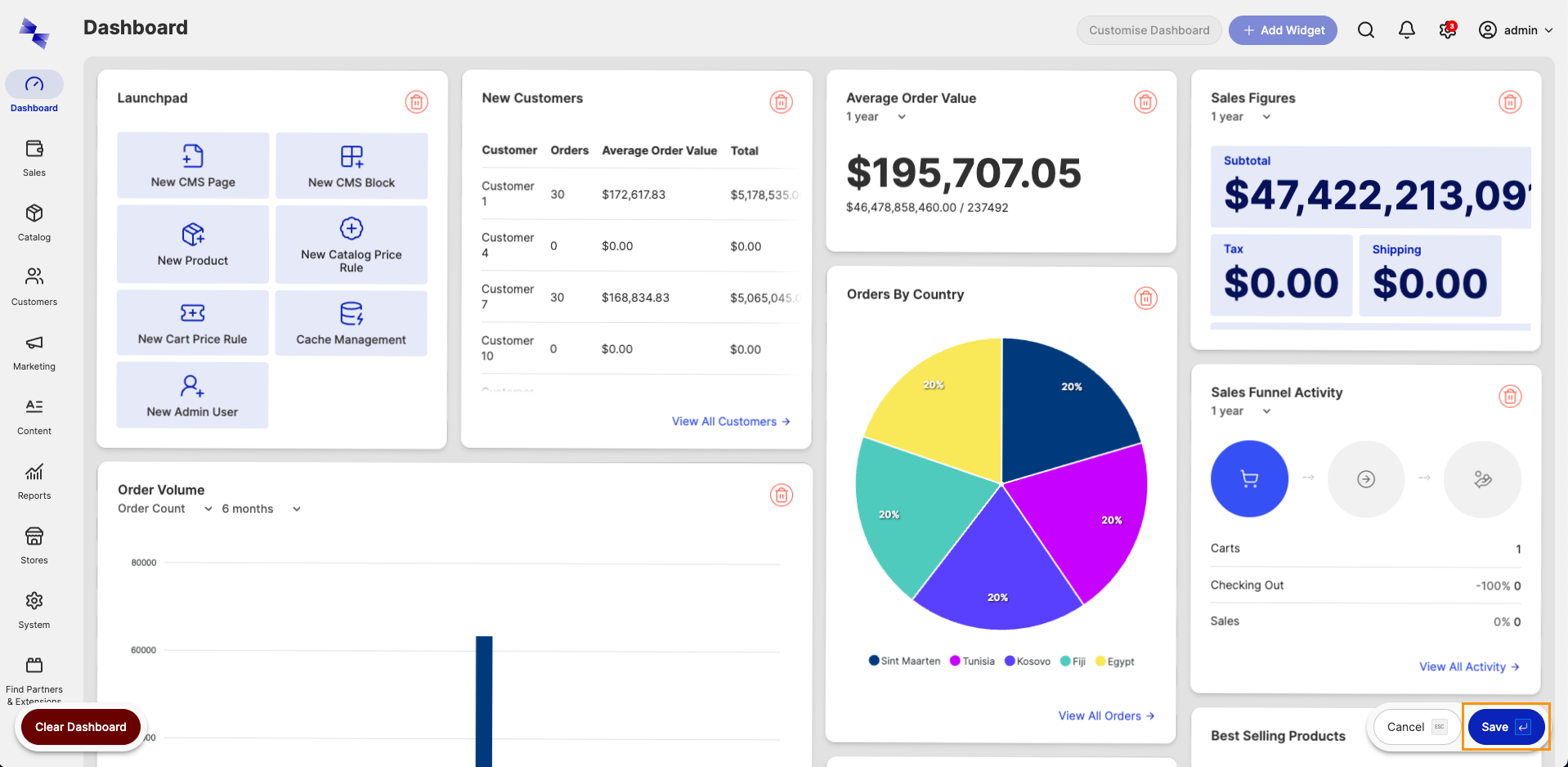
Once you are happy with the changes, click the Save button in the bottom right corner of the screen.
Revert Dashboard Changes
You can restore the dashboard to its previously stable state by clicking the Cancel button instead of Save. This
will undo any of the pending size and positional changes.