Hyvä CMS Liveview Editor
The Liveview Editor is the visual editing interface for Hyvä CMS content. It lets merchants build and review content with components while developers keep rendering logic in Magento templates.
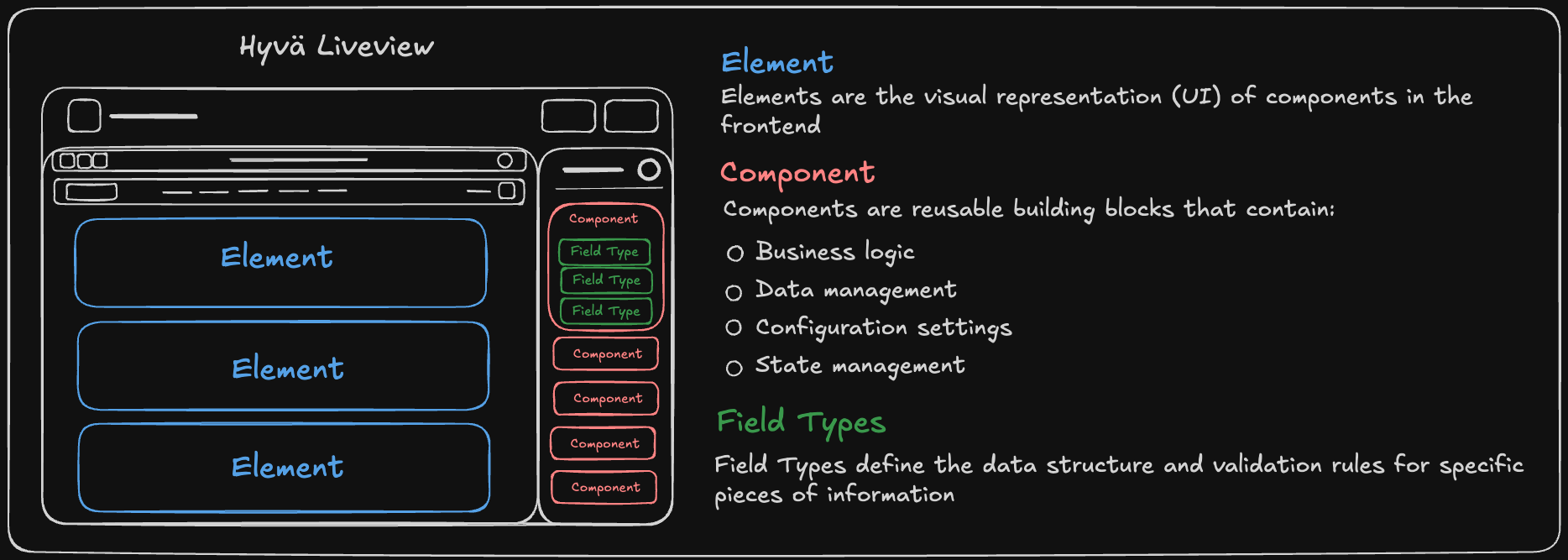
Core Concepts: Components, Elements, and Fields
Component: A reusable building block with editable fields and a rendering template. Examples include headings, images, cards, sliders, CMS blocks, and project-specific components.
Element: An instance of a component in a page, block, attribute, template, or snippet.
Field: An editable value on a component, such as text, image, link, color, products, category, widget, or variant.
Editing Workflow
Hyvä CMS separates draft content from published content:
- Save Draft keeps work in progress without changing the storefront.
- Preview shows draft content through the storefront preview.
- Publish makes the current draft live.
- Schedule Publication prepares content for a future release when scheduling is enabled.
The editor header shows whether content is up to date, has unsaved changes, has unpublished changes, or is live.
From Hyvä CMS 1.3.0, saving or publishing a draft based on an older version raises a conflict if another tab or user has saved newer content. The editor warns instead of silently overwriting that work.
Editor Interface
For a full list of what Hyvä CMS can do, see Key Features on the Overview page. This section covers the editor's own interface: the parts that are specific to how you work inside the Liveview Editor, rather than a content feature with its own page.
Live Preview
- Real-time preview of changes as you edit.
- Responsive preview modes for mobile, tablet, and desktop.
- Split view for editing and previewing side by side, available since Hyvä CMS
1.1.0. - Shareable preview URLs for draft review.
- View Published Page to open the current live page in a new tab. It appears only when the content has a storefront URL. Available since Hyvä CMS
1.2.0. - Scroll straight to a component's place in the preview from the component tree, available since Hyvä CMS
1.2.0.
Editor Layout and Tabs
A tabs bar across the top of the editor keeps your work close at hand. It shows the content you are editing, your recently edited pages and blocks, and a button to open the Navigator. Hover a tab to see a preview thumbnail and recognize content at a glance. The tabs bar is available since Hyvä CMS 1.2.0.
You can tailor the workspace to suit how you work:
- Move the component sidebar to the left or right (a saved editor preference), available since Hyvä CMS
1.2.0. - Drag the divider to resize the sidebar, available since Hyvä CMS
1.2.0. - Search the component tree to jump to a component in large content.
Arrange Header
Available since Hyvä CMS 1.3.0
Custom header arrangements are available from Hyvä CMS 1.3.0.
Open the header menu and choose Arrange Header. Drag controls to put them in the order you use them. The tray below the header holds hidden controls, dividers and spacers: drag an item into the header to add it, or back into the tray to hide it. Choose Reset to default to restore the original arrangement.
Arrangements are stored in this browser by content type, so an email editor can have different controls from a CMS page. Modules can share an arrangement between related types. These arrangements do not follow your account to another browser.
On smaller screens, controls move into an overflow menu. Save and Publish stay visible for as long as space allows.
Workspace View
Available since Hyvä CMS 1.3.0
Editor-only, preview-only and combined workspace views are available from Hyvä CMS 1.3.0.
Add Workspace View through Arrange Header; it is hidden by default. It offers three layouts:
| View | How you work |
|---|---|
| Editor | Work with a centred component tree and field panels beside it, without the preview. Useful when the storefront preview is not part of your workflow. |
| Preview | Give the preview the workspace. Open fields from the preview to edit them in floating panels. |
| Both | Keep the component tree and preview together. |
This controls which parts of the editor are visible. Device sizes and split previews remain separate preview preferences.
Component Management
- Add components from categorized lists, with search and a Favourites tab (the Favourites tab is available since Hyvä CMS
1.2.0). - Drag and drop to reorder content.
- Add child components where a parent allows them.
- Copy, paste, duplicate, and delete components, with duplicate available since Hyvä CMS
1.2.0. - Sort components freely within and across containers, with parent rules enforced on drop. Sorting across containers is available since Hyvä CMS
1.2.0. - Toggle visibility for a component.
- Edit fields directly from the preview with context editing.
From Hyvä CMS 1.3.0, start typing while Add a Component is open to search. When only one matching component remains, press Enter to add it. Use the Categories preferences tab to change the order of the picker categories.
From Hyvä CMS 1.3.0, if a component still has invalid fields when you close its panel, the editor asks for confirmation and lists the errors. The component remains marked in the tree so you can return to it. Saving also checks the document on the server.
Context Editing
Available since Hyvä CMS 1.2.0
Context editing is available from Hyvä CMS 1.2.0.
Hover a component in the preview to reveal a quick-action dot. From there you can open a specific field's editor, highlight the component in the tree, or delete the component, all without opening the sidebar first. Context editing is on by default and can be turned off in editor preferences.
Navigator
Available since Hyvä CMS 1.0.2
The Navigator is available from Hyvä CMS 1.0.2. Creating pages and blocks from the Navigator is available from Hyvä CMS 1.1.0.
The Navigator finds and opens other content, including pages, blocks, templates and snippets, and content types added by installed modules. Open it from the tabs bar or with Shift + N. Use the component tree in the sidebar to navigate within the content you are editing.
The Navigator can also expose quick creation flows, such as creating CMS pages or blocks directly from the editor context.
Version History
Version history is created as content is saved and published.
Merchants can:
- Restore earlier versions.
- Compare versions side by side.
- Pin important versions.
- Name versions.
- See author and timestamp information.
- See schedule-related metadata when a version was published by a scheduled release.
Undo and Redo
Undo and redo cover recent edits made during your current editing session. They are separate from saved version history: undo and redo are a fast, in-memory safety net while you work, and version history is the durable record of saved and published versions. From Hyvä CMS 1.2.0, the controls also let you jump to the earliest undo or the latest redo, and roll back to the last saved draft.
Clipboard History
Available since Hyvä CMS 1.3.0
Clipboard History is available from Hyvä CMS 1.3.0.
Clipboard History keeps the last ten copy or cut entries in this browser. Each entry shows its component type, name and a short text excerpt. Choose an entry to paste it into the current content. Duplicating a component does not add a history entry.
Add Clipboard History to the header through Arrange Header, then open it from that control or with Shift + C. The dropdown belongs to the header control, so add it before using the shortcut. Right-click its header control and choose Clear history to remove saved entries. Clipboard groups and destination component rules prevent incompatible content being pasted into another editor, such as a storefront component into an email.
First-Time Setup
Available since Hyvä CMS 1.2.0
The first-time setup flow is available from Hyvä CMS 1.2.0. The starting-point cards, grouped store views and Advanced settings are available from Hyvä CMS 1.3.0.
When you open a new page or block, choose a starting point: scratch, a saved template, or the configured default template. Choosing scratch or another template replaces the default content. For existing content, migration is offered when there is Magento content to convert.
Set the enable switch, store views and any Advanced settings, then create the content. The dialog stays open until creation and the first draft save succeed.
Guided Tours
Available since Hyvä CMS 1.3.0
Guided tours and their Getting Started controls are available from Hyvä CMS 1.3.0.
A guided tour introduces the controls available for the current content type. In Editor Preferences → Getting Started, replay the tour, reset tour history, manage automatic introductions, or open What's new. Tour progress is remembered per admin user.