Configuring Media Optimization
Media Optimization settings are in the Magento admin under Stores → Settings → Configuration → Hyvä Commerce → Media Optimization. This page walks through each configuration group.
System Check
System Check does not provide configuration options. It reports details and diagnostics on the installed resize and conversion libraries, such as whether specific features are supported.
Find it under Stores → Settings → Configuration → Hyvä Commerce → Media Optimization → Platform Compatibility Check → System Check.
Image Optimization Settings
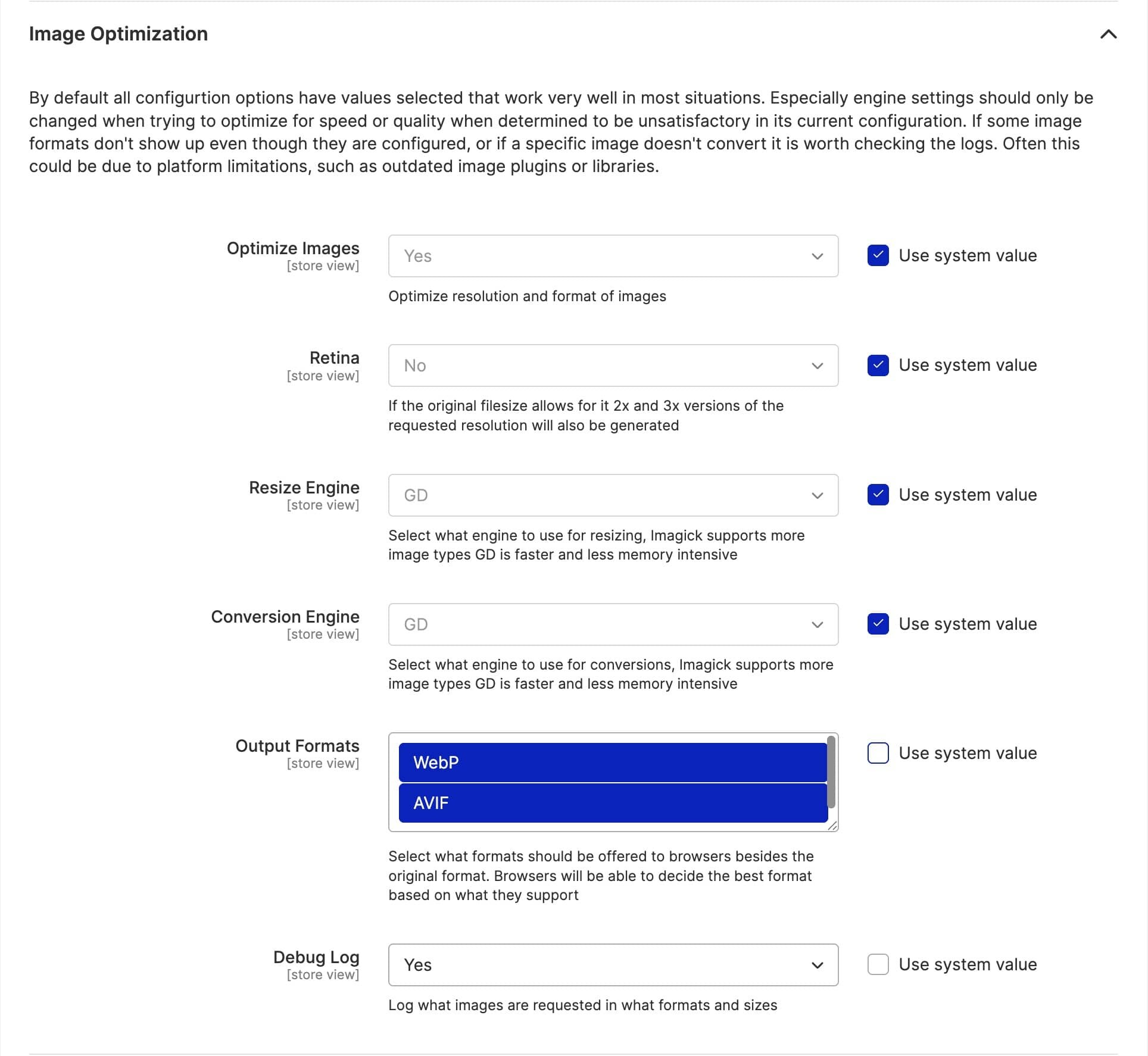
These options enable the overall functionality, select the engines and output formats used, and enable logging.
Core Settings
The module ships with defaults that work well for most stores. Enable optimization and select your output formats to get started.
The Retina setting controls whether the module generates 2x and 3x resolution variants for high-density displays. This improves image quality on modern devices but increases storage requirements and initial processing time.
Format Selection
WebP provides good compression with broad browser support. AVIF offers better compression but requires newer browsers. Consider your browser support requirements when selecting formats.
Automatic Image Replacement Settings
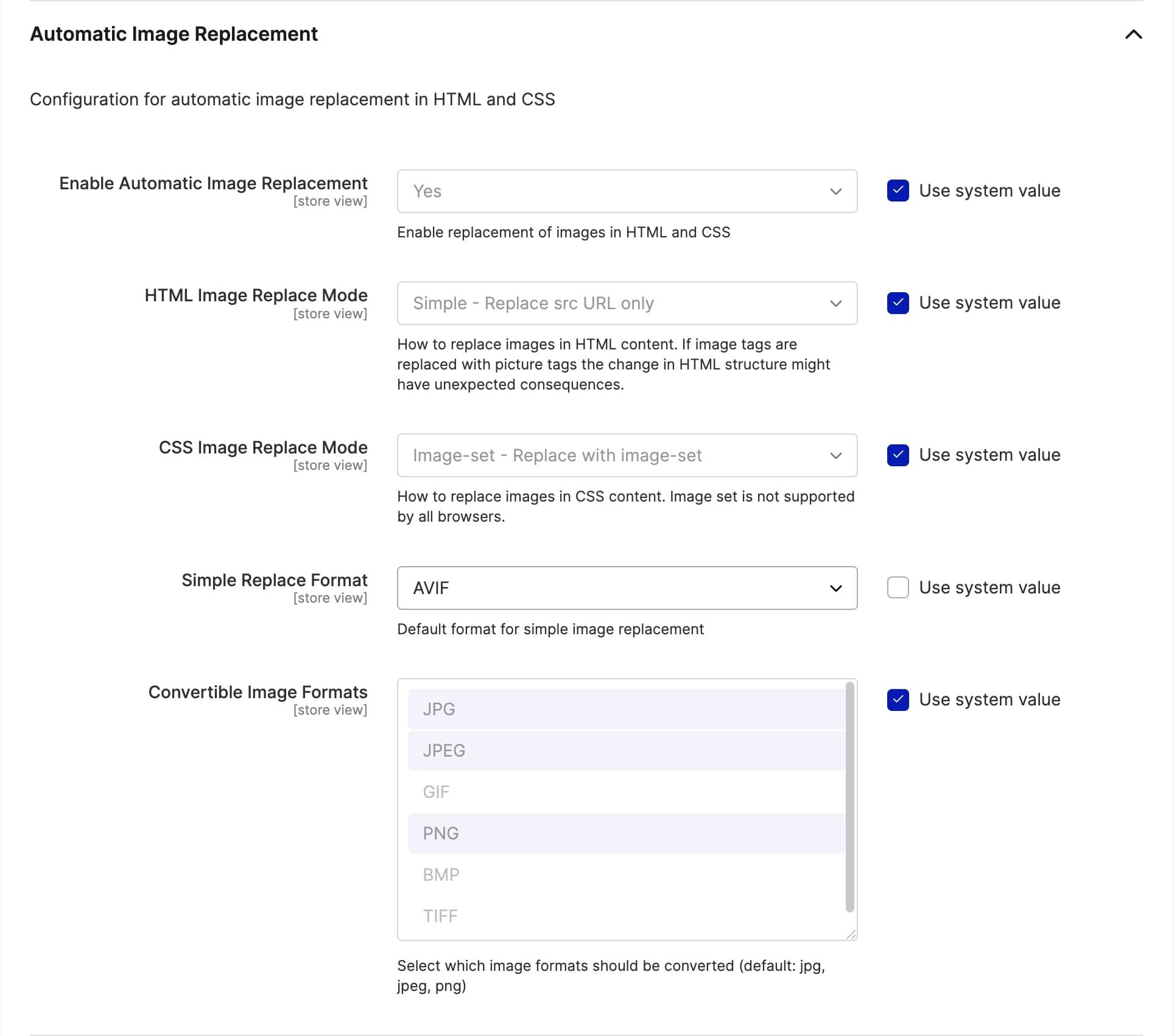
These options enable or disable automatic image replacement, set the replacement mode for HTML (for example <img>) and CSS (for example background-image), the input formats to target, and the output formats to generate. For what each mode does and when to use it, see Replacement Modes.
Viewport Breakpoints
Viewport Breakpoints configure responsive image sizing based on viewport width, avoiding unnecessarily large images being sent to smaller screens.
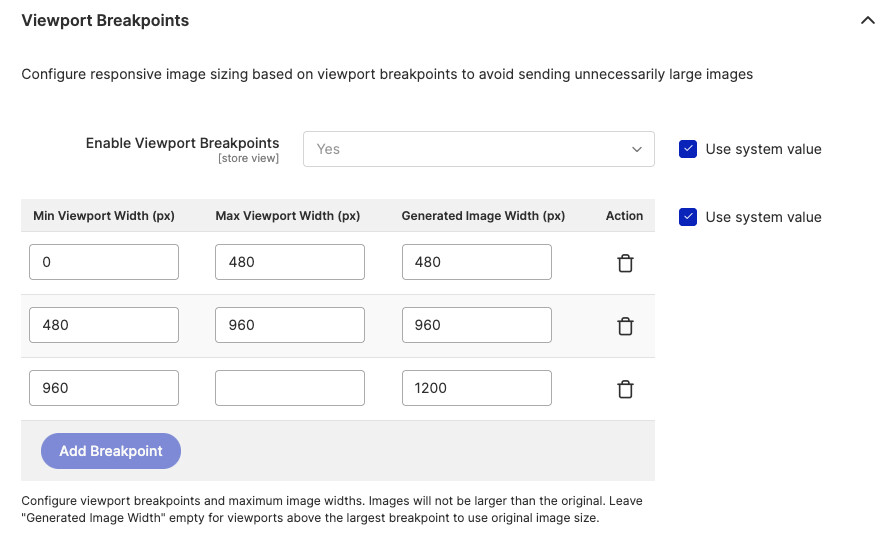
Define breakpoint rows with a minimum viewport width, an optional maximum viewport width, and the generated image width to use for that range. Images are never generated larger than the original. Leave the Generated Image Width empty for viewports above the largest breakpoint to serve the original image size.
Breakpoints apply when using the Developer API or Automatic Image Replacement in picture mode.
Engine Settings
The GD and Imagick engines each expose their own quality, compression, and encoding-speed settings for both resizing and conversion. For engine selection, requirements, and when to use each, see Image Processing Engines.