Building Flexible Menus
Currently available in beta
Menu Builder is currently available in beta, which means some of the features, specifications, and details provided herein are subject to change. We recommend checking back regularly for the most up-to-date information and viewing our roadmap in regard to the general availability release.
Hyvä Menu Builder provides complete flexibility in menu composition. You can build menus with manual links, rich content blocks, imported categories from your catalog, and dynamic category trees. This guide covers the available menu components, how to add links and content, workflow tips for efficient editing, and strategies for choosing the right approach for your navigation needs.
Available Menu Components
Hyvä Menu Builder includes four built-in menu components out of the box, each designed for different navigation patterns and use cases:
Mega Menu Columns
The Mega Menu Columns component displays a traditional mega menu with top-level items that expand into panels showing nested items in a column format. Use this component when you need to organize content-rich menus with multiple categories and subcategories visible at once.
Mega Menu Drilldown
The Mega Menu Drilldown component is designed for deeply nested navigation structures. This drilldown-style menu resembles mobile menu patterns and allows users to navigate through multiple levels of content progressively, making it ideal for complex category hierarchies.
Mobile Menu
The Mobile Menu component provides a modern drilldown-style navigation optimized for mobile devices. This menu component includes integrated features like a search bar and call-to-action button, giving mobile users quick access to key functions.
Footer Columns
The Footer Columns component organizes links into a multi-column footer navigation layout. Use this component for comprehensive site-wide navigation in your footer, such as customer service links, company information, and legal pages.
Developers can also create custom menu components tailored to specific design requirements. See Creating Custom Menu Components for technical implementation details on building custom menu components.
Adding Links to Menu Items
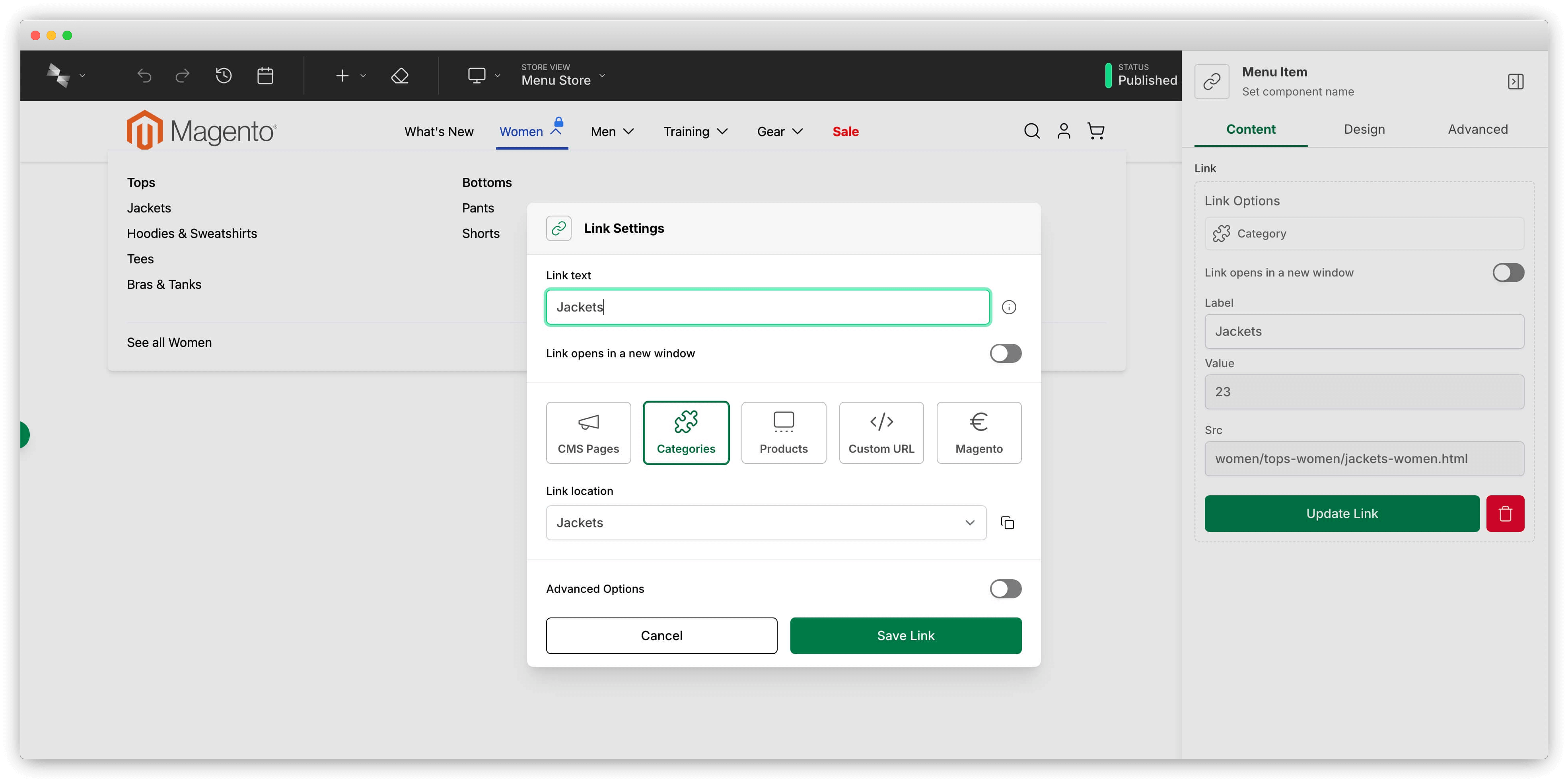
Menu Builder supports links to various content types throughout your Magento store. When building menus with links, you can connect menu items to categories, products, CMS pages, and custom URLs.
The link picker in Menu Builder provides access to:
- Categories - Link menu items to any category in your product catalog
- Products - Create links to individual product pages or featured items
- CMS Pages - Add links to static pages like About Us, Contact, and Shipping Information
- Magento Pages - Add links to Magento pages like the contact page, my account page, wishlist page etc.
- Custom URLs - Include external links or special landing pages in your menu
Each menu item is added through the link picker interface, giving you precise control over menu structure and content. The link picker allows you to search and select from your existing Magento content or specify custom URLs.
Adding Rich Content to Menus
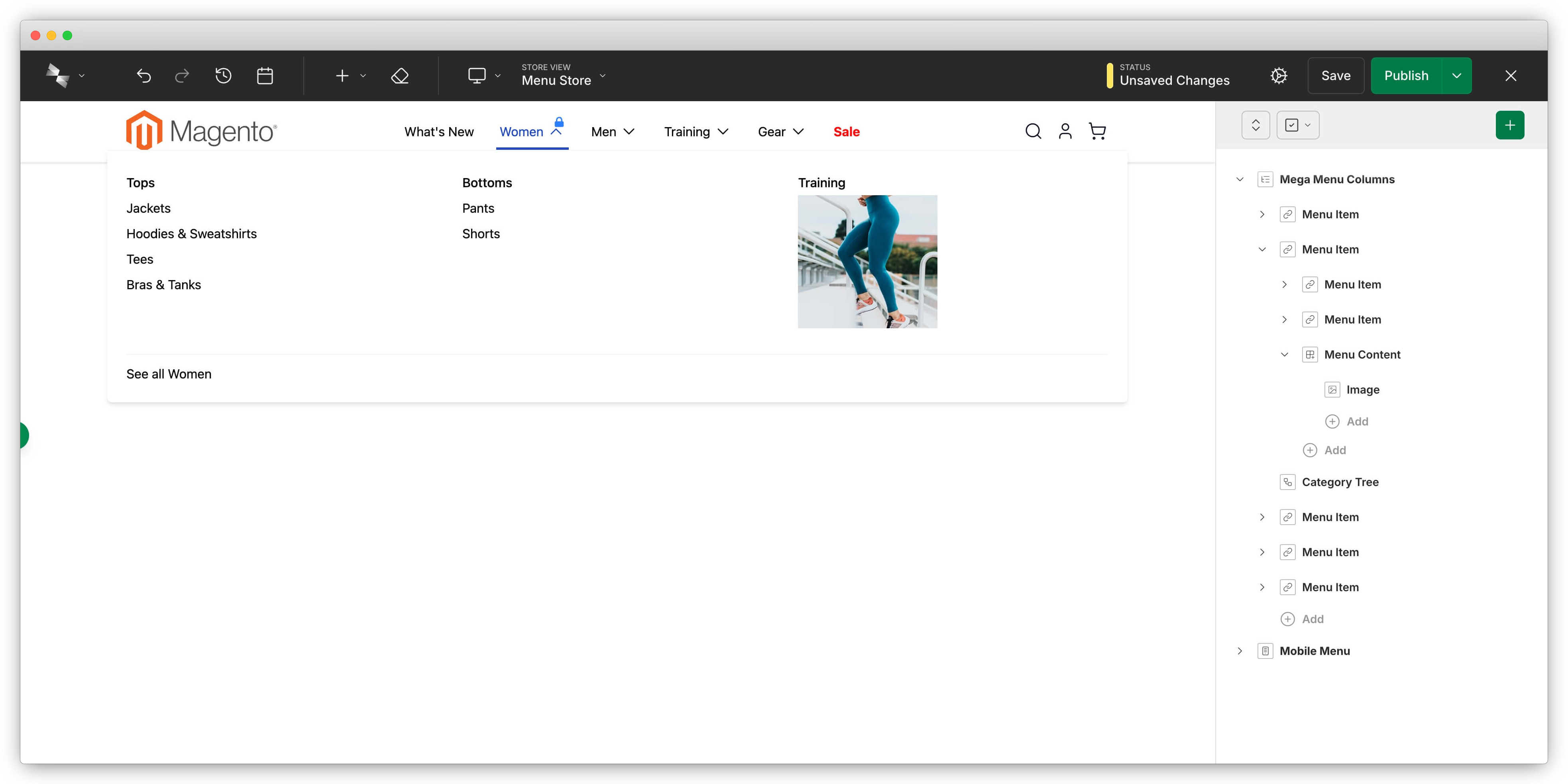
Most Menu Builder layouts support the Menu Content component, which accepts any Hyvä CMS content type. The Menu Content component allows you to enhance your menus with images, banners, promotional blocks, custom layouts, or any other CMS component.
Use rich content in menus to create engaging navigation experiences. For example, add product images to category menus, display promotional banners for sales, or include quick links to popular pages. The Menu Content component integrates seamlessly with your menu structure.
Highlighting menu items: Individual menu items in Menu Builder can be visually emphasized through design settings in the editor. You can adjust the text color, background color, and font weight to draw attention to specific items like sale categories, new arrivals, or featured sections. This highlighting helps guide customers to important areas of your store.
Menu Builder Editing Workflow Tips
Locking Menus Open in Preview Mode
When editing menus in the Hyvä CMS editor, you can lock specific menu components to remain open in the preview panel. Menu locking prevents the menu from closing each time the preview reloads with your new content, making it significantly easier to iterate on menu design and content without repeatedly reopening navigation panels.
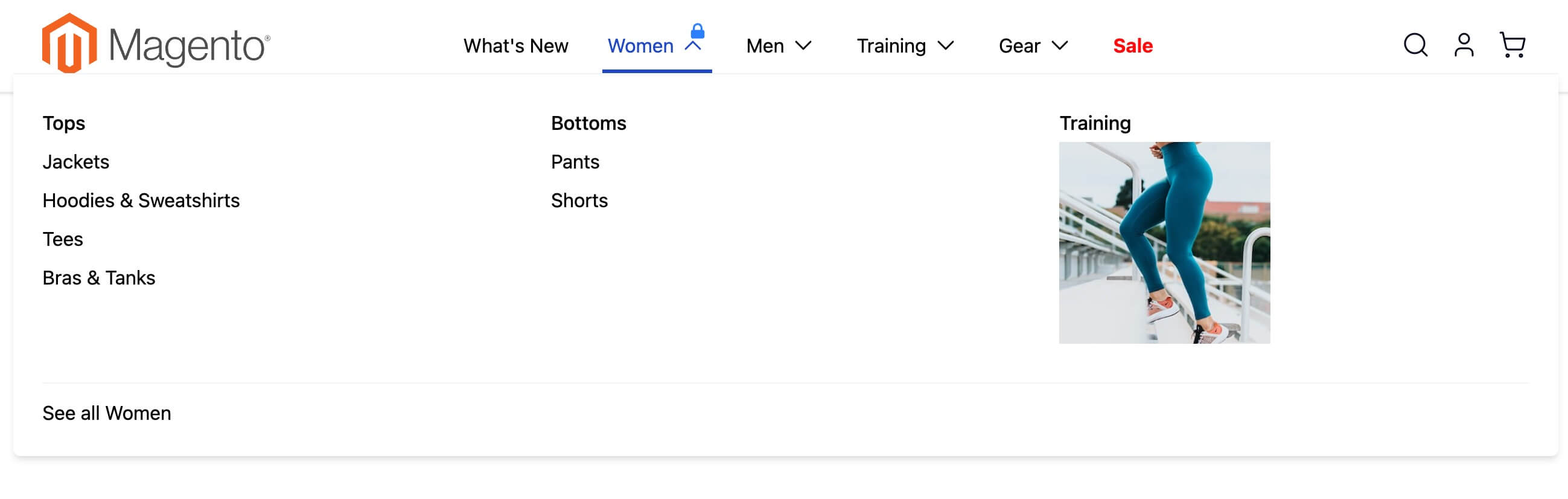
To lock a menu open in Menu Builder, hover over a menu item in the preview panel and click the blue lock icon that appears. The locked menu will stay expanded as you make changes in the editor, allowing you to see your edits immediately without having to reopen the menu after each save. This workflow improvement is especially helpful when editing deeply nested menu structures or working with multi-level mega menus.
Category-Specific Features in Menu Builder
For menus that include product catalog categories, Menu Builder provides specialized features that accelerate setup and maintenance of category-based navigation.
Importing Categories from Your Catalog
The category import feature in Menu Builder lets you quickly add multiple categories to your menu at once. Click the "Import Categories" button to browse your Magento category tree and select multiple categories simultaneously. The category import system creates menu items for each selected category, including nested sub-categories, saving significant time when building category-based navigation structures.
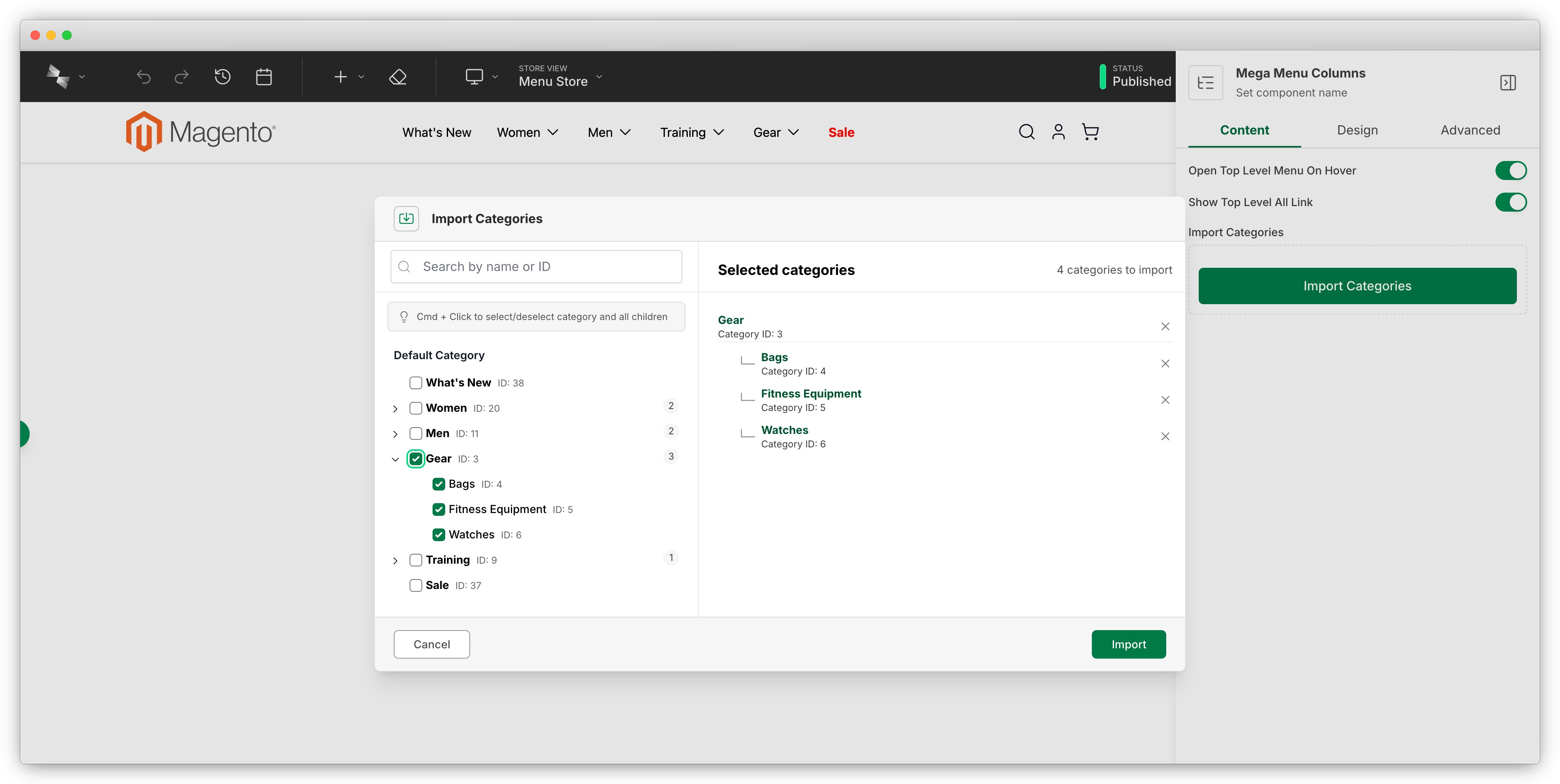
After importing categories into Menu Builder, the created menu items remain independent and fully editable. You can reorder imported categories, edit their display settings, or enhance them with additional rich content. Category imports provide a starting point that you can customize to match your navigation needs.
Dynamic Category Trees
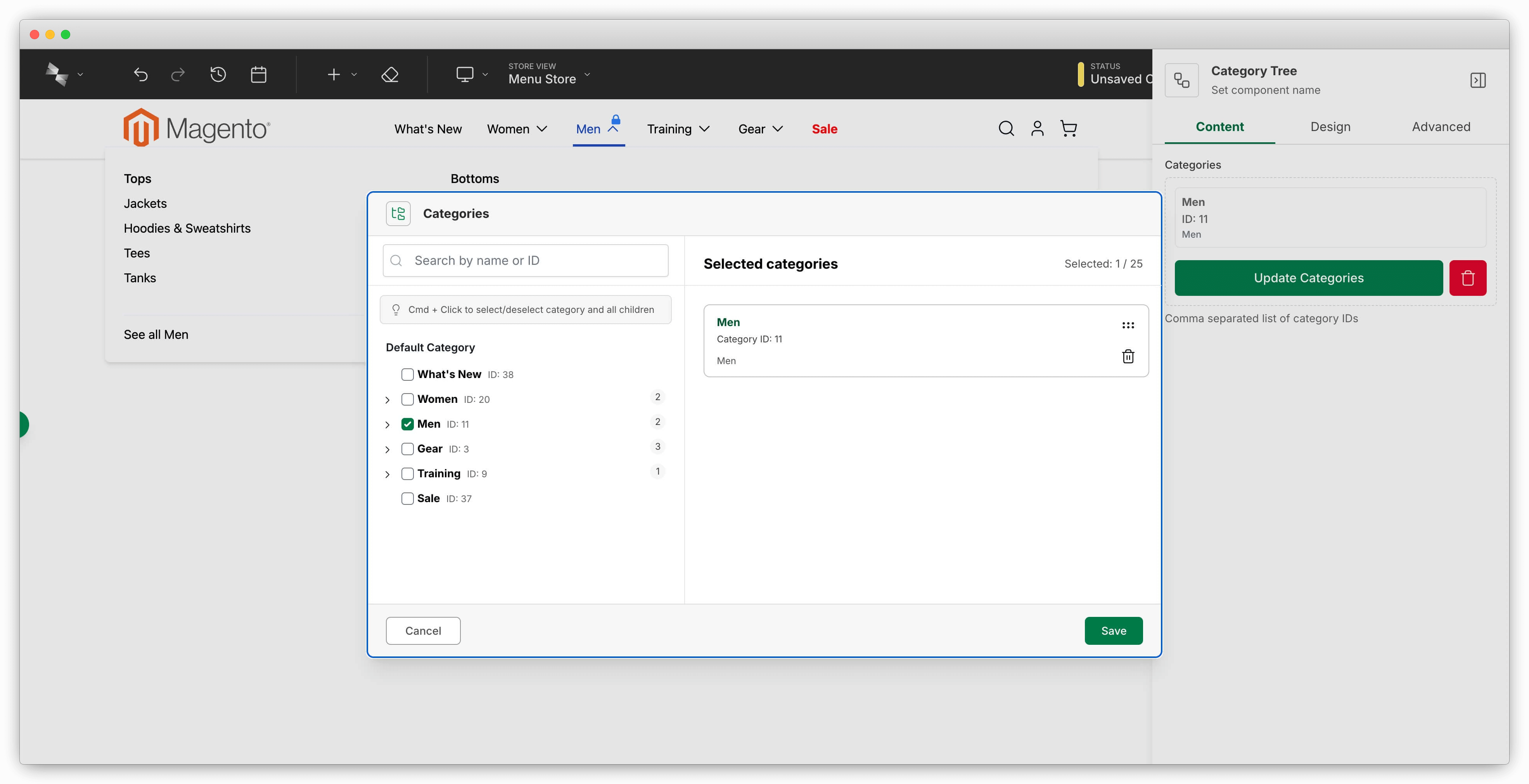
Category tree components in Menu Builder automatically generate menu items based on your current Magento catalog structure. Unlike imported categories, dynamic category trees update automatically when categories are added, removed, or reorganized in your catalog. This automatic synchronization ensures your menu navigation always reflects your current category structure without manual updates.
Perfect for ERP-Driven Catalogs
If your product catalog updates automatically from an ERP system or frequent category changes occur, category tree components in Menu Builder ensure your navigation always matches your current catalog without any manual menu updates. This zero-maintenance approach is ideal for dynamic catalogs.
Related Topics
- Creating Custom Menu Components - Developer guide for building custom menu components
- Importing Categories - Technical details on category import
- Category Tree Expander - How dynamic category expansion works