Widget Deletion
You can remove widgets from a Hyvä Admin Dashboard individually, in groups, or all at once. This guide walks through each method step by step.
Removing Individual Widgets
Delete a single widget straight from its own action menu, without entering edit mode.
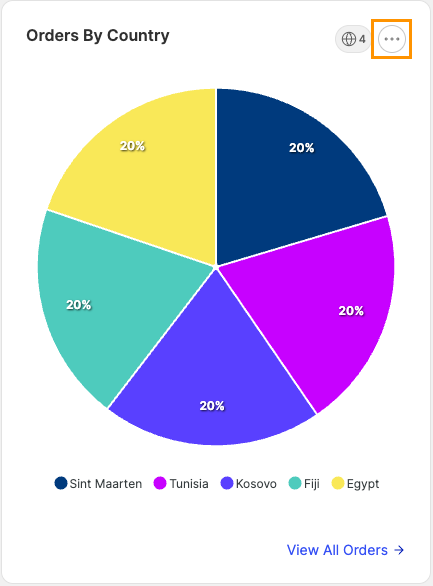
1. Open the Widget Menu
Each widget has an action menu that you open by clicking the ellipsis in its top-right corner.
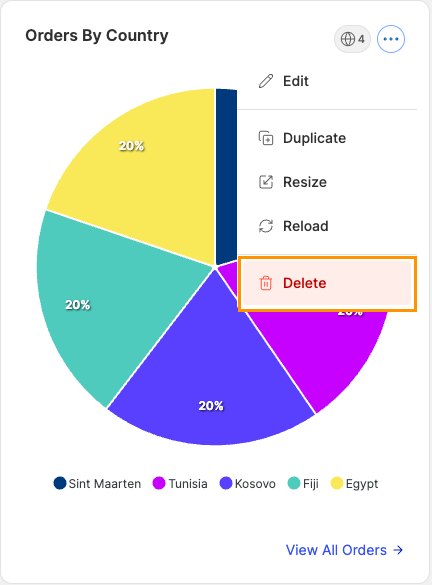
2. Select the Delete Action
With the widget menu open, locate and select the Delete option.
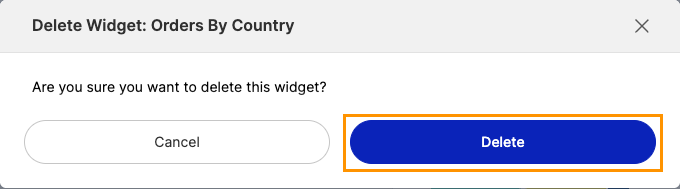
3. Confirm the Action
After you select Delete, a confirmation modal appears where you can either cancel or confirm the deletion.
Removing Multiple Widgets
To delete several widgets at once, use the dashboard's "Edit Mode".
1. Enable "Edit Mode"
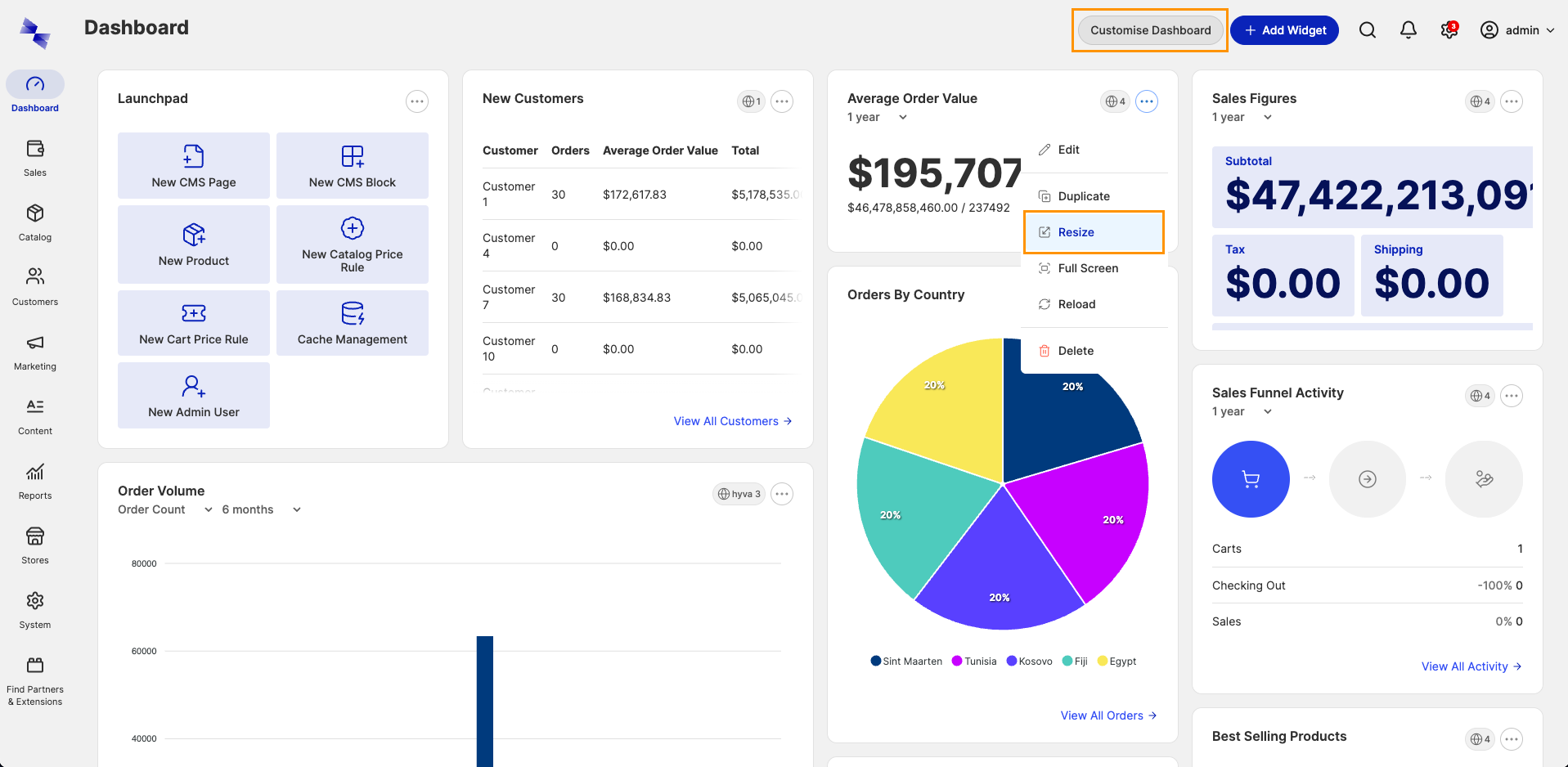
Enable the dashboard's "Edit Mode" in either of these ways:
- Click the
Customize Dashboardbutton in the upper-right corner of the dashboard. - Select the
Resizeoption from any widget action menu.
2. Delete Selected Widgets
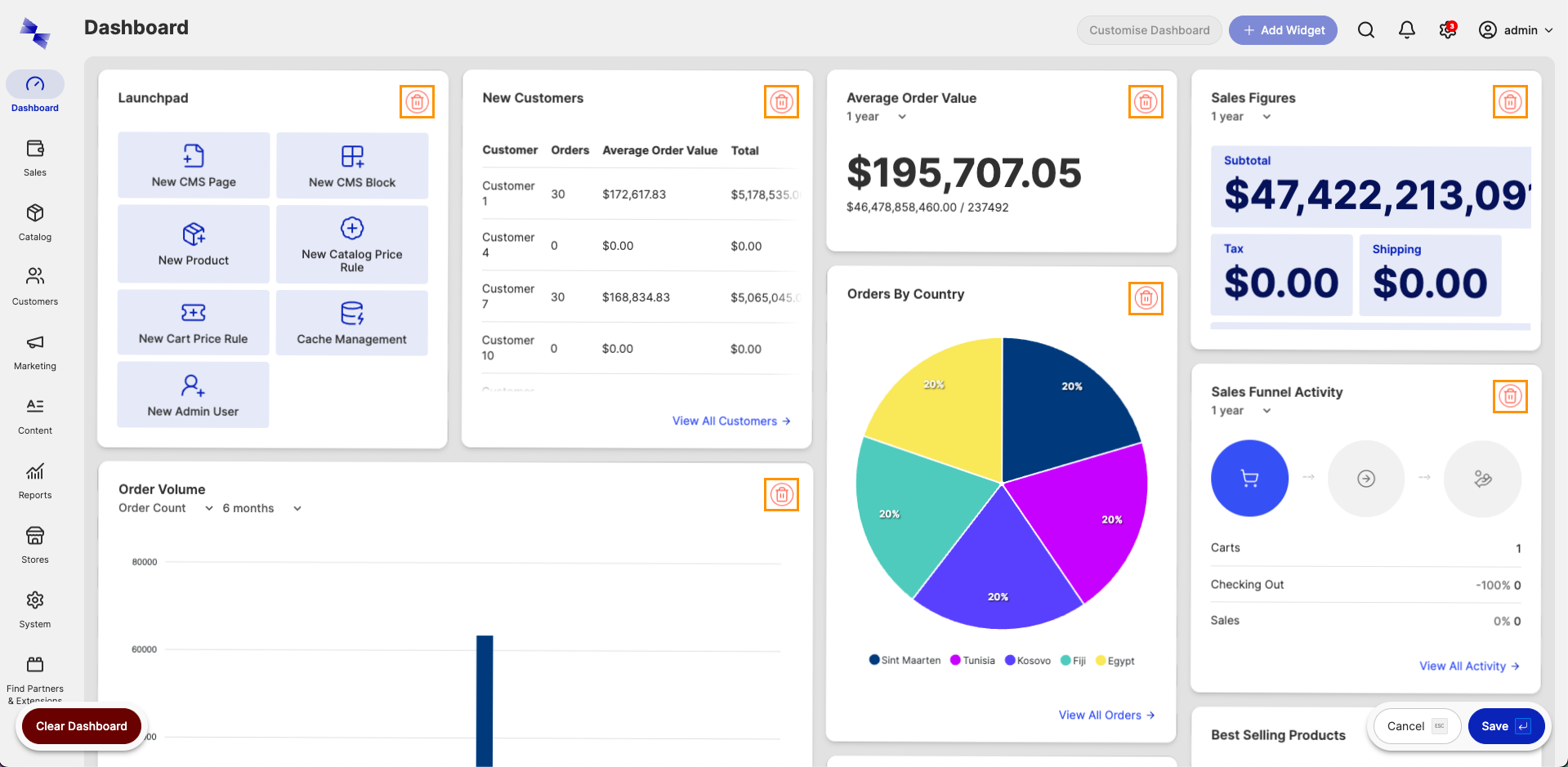
With "Edit Mode" active, use the delete button to remove each widget you want to delete.
3. Save the Dashboard
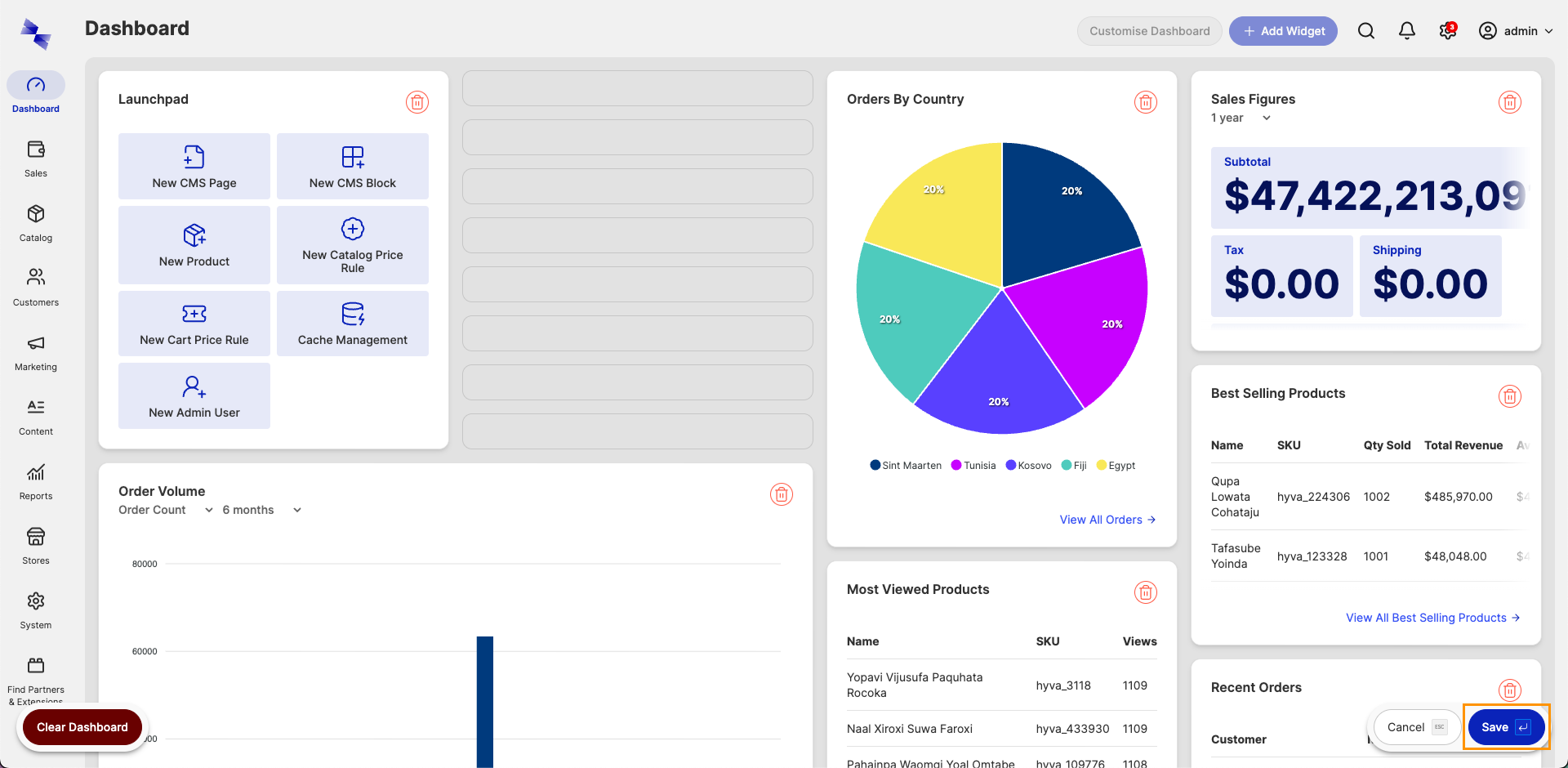
Use the Save button or the Enter key to persist the changes.
Tip
Use the "Cancel" button or the "Escape" key to discard your changes.
Clearing the Dashboard
To remove every widget in one action, use "Clear Dashboard" from within "Edit Mode".
1. Enable "Edit Mode"
Enable the dashboard's "Edit Mode" in either of these ways:
- Click the
Customize Dashboardbutton in the upper-right corner of the dashboard. - Select the
Resizeoption from any widget action menu.
2. Select the Clear Dashboard Action
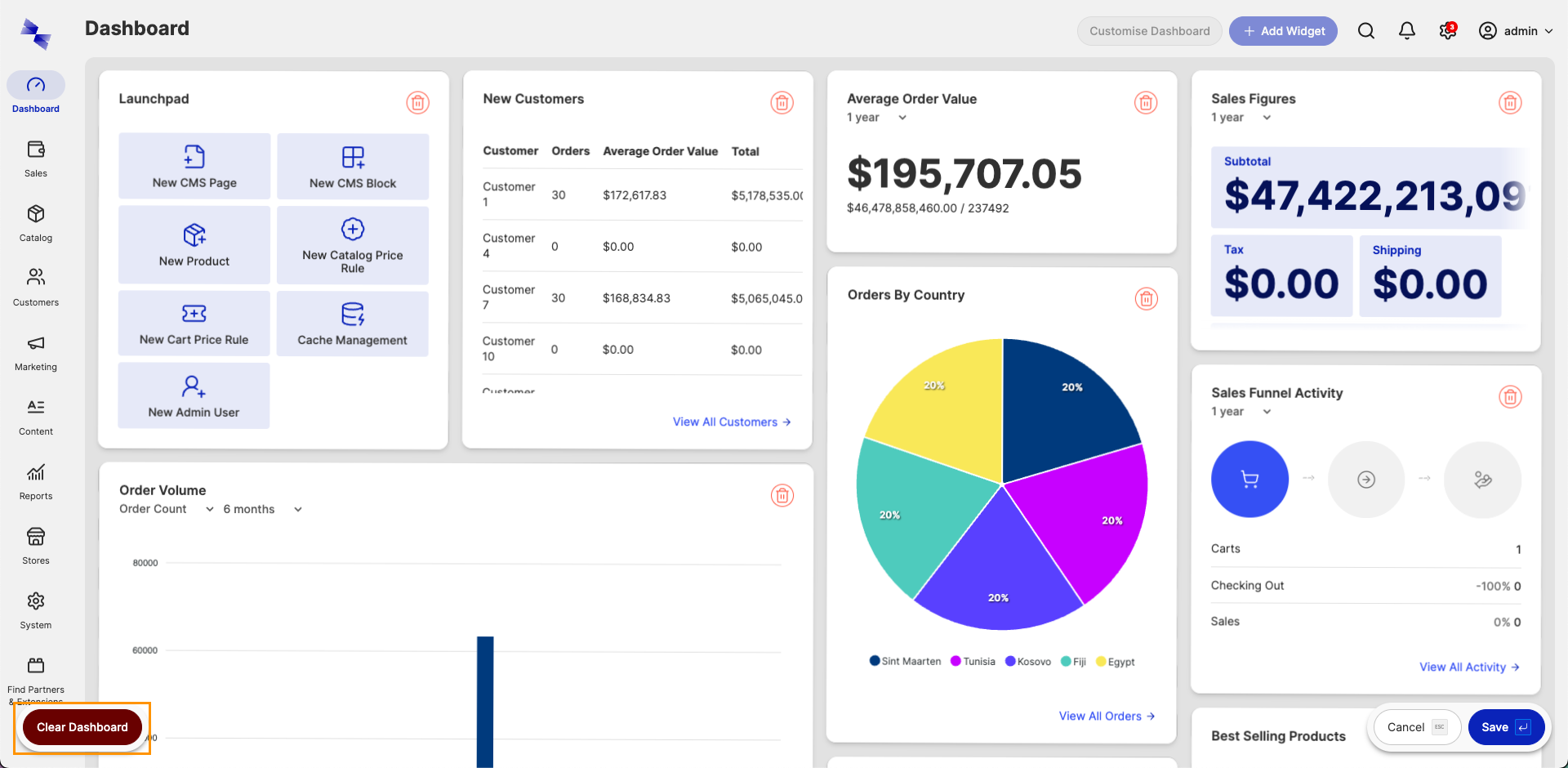
Locate and click the Clear Dashboard button.
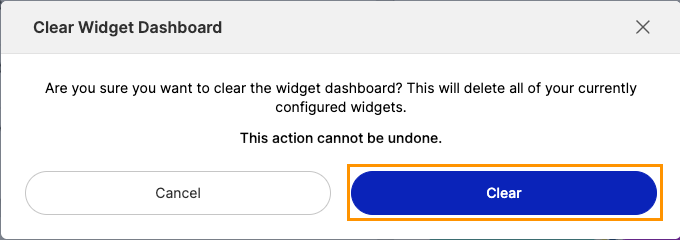
3. Confirm the Action
After you select Clear Dashboard, a confirmation modal appears where you can either cancel or confirm the deletion of all widgets.