Locking Menus in Preview Mode
Currently available in beta
Menu Builder is currently available in beta, which means some of the features, specifications, and details provided herein are subject to change. We recommend checking back regularly for the most up-to-date information and viewing our roadmap in regard to the general availability release.
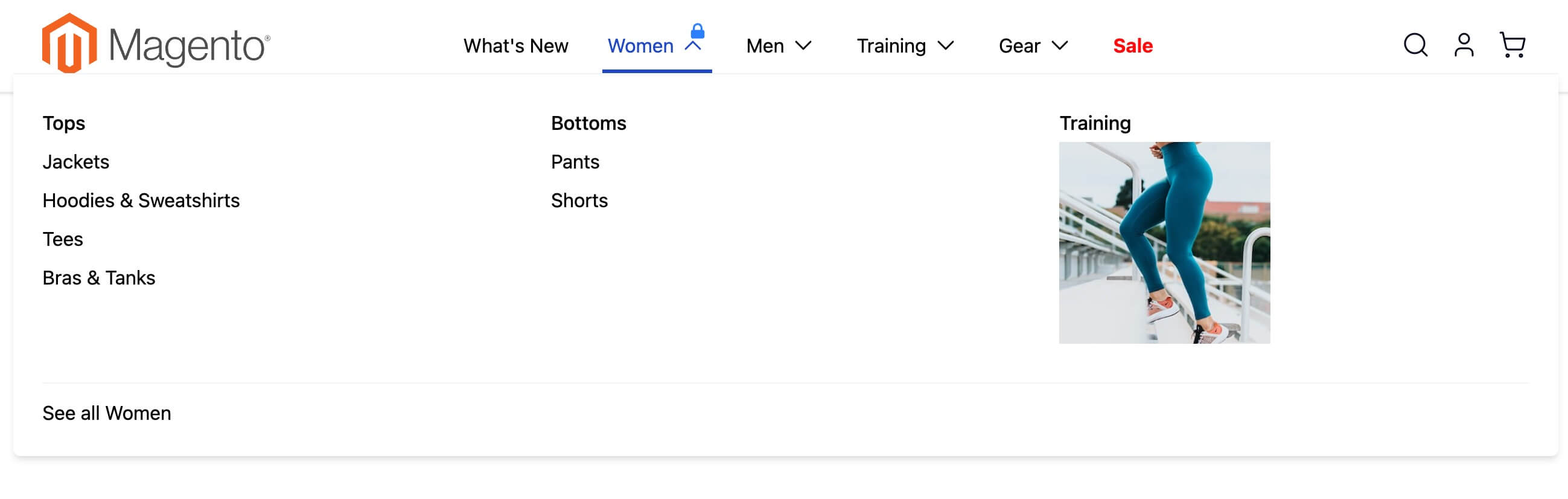
Menu locking in Hyvä Menu Builder keeps menus open when you refresh the preview in the CMS editor. Without locking, every time you make a change and the preview refreshes, collapsible menus close—forcing you to click through multiple levels to get back to where you were editing. With menu locking enabled, the menu stays in the exact state you left it, making it way easier to edit complex multi-level menus.
This Feature is Optional
Menu locking is optional and only works in CMS preview mode. Basic menus work fine without it. You should implement this if you're building complex nested menus where editors need to drill down multiple levels. The implementation adds some complexity, so think about whether your use case needs it.
What You Need to Implement Menu Locking
Here's what you need to add to your custom menu component to support locking:
- HTML data-lock-id attributes - Add unique lock IDs to each menu item container
- Alpine.js locked property - Track lock state in your Alpine.js component
- Lock button - Add lock/unlock button HTML to expandable menu items
- Alpine.js toggleLock() function - Handle lock/unlock actions
- Menu registration - Register your menu with
window.hyvaMenuin preview mode
Menu Lock Script Already Included
The preview/menu-lock.js.phtml template is automatically included on all frontend pages by the Menu Builder default.xml layout. It only loads in preview mode, so it won't affect your storefront pages. You only need to check this if menu locking isn't working and you've created custom layouts that might not inherit from the default.
Implementation
1. Add data-lock-id HTML Attributes to Menu Items
Each menu item that can be expanded needs a unique data-lock-id attribute so the lock system can identify it and restore its state after preview refreshes. Add this attribute to your menu item container (typically an <li> tag) only when in preview mode:
<?php if ($block->validPreview()): ?>
    data-lock-id="<?= $escaper->escapeHtml($menuItem['uid']) ?>"
<?php endif; ?>
The $menuItem['uid'] provides a unique identifier for each menu item. The $block->validPreview() method checks if you're in preview mode, so this attribute only appears in the editor, not on your live site.
For nested menus with multiple levels, add the level number to the lock ID so the system can restore the correct state at each level:
This ensures that if the same menu item appears at different nesting levels, each instance gets locked independently.
2. Add locked Property to Your Alpine.js Component
Your Alpine.js menu component needs a locked boolean property to track whether the menu item is currently locked open:
function initMyMenu(menuUid) {
    return {
        menuUid: menuUid,
        open: false,
        locked: false,  // Tracks lock state for this menu item
        // ... other properties
    }
}
This property works alongside your existing open property. When locked is true, the menu stays open and prevents the open property from toggling.
3. Add Lock Button HTML to Expandable Menu Items
Each expandable menu item needs a lock/unlock button that editors can click. Hyvä Menu Builder provides a pre-built button template at html/preview/menu-lock-button.phtml. Add it to your menu template wherever you want the lock button to appear (typically next to or inside the menu item label):
<?= /** @noEscape */ $block->validPreview() ? $block->getLayout()
    ->createBlock(\Magento\Framework\View\Element\Template::class, '', ['data' => [
        'menu_id' => $menuItem['uid'],
        'template' => 'Hyva_MenuBuilder::html/preview/menu-lock-button.phtml'
    ]])->toHtml() : '' ?>
This creates the button block only in preview mode. The menu_id data tells the button which menu item it controls.
For nested menus with multiple levels, include the level number in the menu ID to match the data-lock-id format from step 1:
4. Add toggleLock() Function to Your Alpine.js Component
Now add the toggleLock() method to handle lock/unlock actions. This method toggles the locked property and registers the lock state with the global window.hyvaMenu object so it persists across preview refreshes.
You also need to update your toggle(), close(), and canHover() methods to respect the lock state:
function initMyMenu(menuUid) {
    return {
        menuUid: menuUid,
        open: false,
        locked: false,

        toggleLock(uidToLock) {
            // Get the global menu state object for this menu
            const menuState = window.hyvaMenu[menuUid];
            if (!menuState) return;

            // Toggle the locked state
            this.locked = !this.locked;

            if (this.locked) {
                // When locking, open the menu and register the lock globally
                this.open = true;
                menuState.lockedMenuId = uidToLock ?? this.menuId;
            } else {
                // When unlocking, clear the global lock state
                menuState.lockedMenuId = null;
            }
        },

        toggle() {
            // Don't toggle if locked
            if (!this.locked) {
                this.open = !this.open;
            }
        },

        close() {
            // Don't close if locked
            if (!this.locked) {
                this.open = false;
            }
        },

        canHover() {
            // Disable hover behavior when any menu item is locked
            const hoverAllowed = window.matchMedia('(hover: hover) and (pointer: fine)').matches;
            return hoverAllowed<?php if ($block->validPreview()): ?> && !window.hyvaMenu['<?= $escaper->escapeJs($menuUid) ?>']?.lockedMenuId<?php endif; ?>;
        }
    }
}
The toggleLock() method accesses window.hyvaMenu[menuUid] to store the locked menu ID globally. This lets the global lock script restore the menu state after preview refreshes. The toggle() and close() methods check this.locked before allowing the menu to collapse. The canHover() method disables hover-to-open behavior when any menu item is locked, so editors can click around without menus auto-opening.
Always Pass Parameters Explicitly
Pass menuUid and rootMenuId as parameters to your Alpine.js init function via x-data. Don't rely on closure scope or DOM lookups—those patterns cause undefined references and silent failures that are hard to debug.
5. Register Your Menu with window.hyvaMenu in Preview Mode
The final step is registering your menu with the global window.hyvaMenu object when in preview mode. This tells the lock system "this menu exists" and lets it track and restore lock state across preview refreshes:
<?php if ($block->validPreview()): ?>
    window.hyvaMenu?.initMenu?.('<?= $escaper->escapeJs($menuUid) ?>');
<?php endif; ?>
Add this JavaScript snippet to your menu template, typically near where you initialize your Alpine.js component. The initMenu() method creates a state object for your menu where locked menu IDs get stored. The optional chaining operators (?.) ensure this doesn't break if the global lock script isn't loaded yet.
Implementing Menu Locking for Nested Menus
When you have nested sub-menus (menus within menus), each nested item needs to access the root menu's lock state. The lock state is stored at the root menu level, not at each individual sub-item level, so nested items need to know which root menu they belong to.
Here's how to set this up:
Pass the root menu ID through block data when rendering child menu items:
Initialize nested items with both the item's own ID and the root menu ID:
x-data="initMyMenuSubItem('<?= $escaper->escapeJs($menuId) ?>', '<?= $escaper->escapeJs($rootMenuId) ?>')"
Access the root menu state in your nested item's Alpine.js component:
function initMyMenuSubItem(menuId, rootMenuId) {
    return {
        menuId: menuId,
        rootMenuId: rootMenuId,
        locked: false,

        toggleLock(uidToLock) {
            // Access the ROOT menu's state, not this sub-item's state
            const menuState = this.rootMenuId && window.hyvaMenu[this.rootMenuId];
            if (!menuState) return;

            this.locked = !this.locked;

            if (this.locked) {
                this.open = true;
                menuState.lockedMenuId = uidToLock ?? this.menuId;
            } else {
                menuState.lockedMenuId = null;
            }
        },

        // ... add toggle(), close(), canHover() methods as shown in step 4
    }
}
The key difference is that toggleLock() accesses window.hyvaMenu[this.rootMenuId] instead of window.hyvaMenu[menuId]. This ensures all nested items share the same lock state as their root menu.
Always Use rootMenuId, Never parentMenuId
When accessing window.hyvaMenu from nested menu items, always use rootMenuId, not parentMenuId or menuId. The lock state lives at the root menu level. Using the wrong ID will cause lock state to not persist or behave unpredictably.
Related Topics
- Creating Custom Menu Components - Complete guide to menu component creation
- Category Tree Expander - Automatically sync menu items with catalog structure
- Importing Categories - Let editors bulk-import categories as menu items
Reference Implementation
Want to see all these pieces working together? Check out the complete implementations in module-menu-builder:
Hyva_MenuBuilder::elements/desktop_menu_drilldown/index.phtml- Desktop dropdown menu with full lock supportHyva_MenuBuilder::elements/mobile_menu/index.phtml- Mobile menu with lock implementation
These templates show you exactly how to wire up the global script, HTML attributes, Alpine.js properties, lock buttons, and menu registration for both simple and nested menu structures.