Creating Menus
Hyvä Menu Builder lets you build storefront menus visually in the Magento admin, using the Hyvä CMS editor. This page covers creating a menu, the available menu components, and how to fill menus with links, rich content, and catalog categories. Once a menu is built, see Displaying Menus to show it on your storefront.
Creating a Menu
Hyvä Menu Builder menus are created and managed in the Magento admin panel, under Content → Elements → Menus.
To create a new menu:
- Go to
Content → Elements → Menusin your Magento admin. - Click Add New Menu.
- Build your structure with the Hyvä CMS editor: add links, nested items, category trees, category imports, and more.
- Click Save to make your menu available for rendering.
Once you've created a menu, you can display it on your storefront.
Available Menu Components
Hyvä Menu Builder includes four built-in menu components out of the box, each designed for different navigation patterns and use cases.
Mega Menu Columns
The Mega Menu Columns component displays a traditional mega menu with top-level items that expand into panels showing nested items in a column format. Use this component when you need to organize content-rich menus with multiple categories and subcategories visible at once.
Mega Menu Drilldown
The Mega Menu Drilldown component is designed for deeply nested navigation structures. This drilldown-style menu resembles mobile menu patterns and lets users navigate through multiple levels of content progressively, making it ideal for complex category hierarchies.
Mobile Menu
The Mobile Menu component provides a modern drilldown-style navigation optimized for mobile devices. It includes integrated features such as a search bar and call-to-action button, giving mobile users quick access to key functions.
Footer Columns
The Footer Columns component organizes links into a multi-column footer navigation layout. Use this component for comprehensive site-wide navigation in your footer, such as customer service links, company information, and legal pages.
Developers can also create custom menu components tailored to specific design requirements. See Creating Custom Menu Components for the technical implementation details.
Adding Links to Menu Items
Menu Builder supports links to various content types throughout your Magento store. When building menus with links, you can connect menu items to categories, products, CMS pages, and custom URLs.
The link picker in Menu Builder provides access to:
- Categories: link menu items to any category in your product catalog.
- Products: create links to individual product pages or featured items.
- CMS Pages: add links to static pages like About Us, Contact, and Shipping Information.
- Magento Pages: add links to Magento pages such as the contact page, my account page, and wishlist page.
- Custom URLs: include external links or special landing pages in your menu.
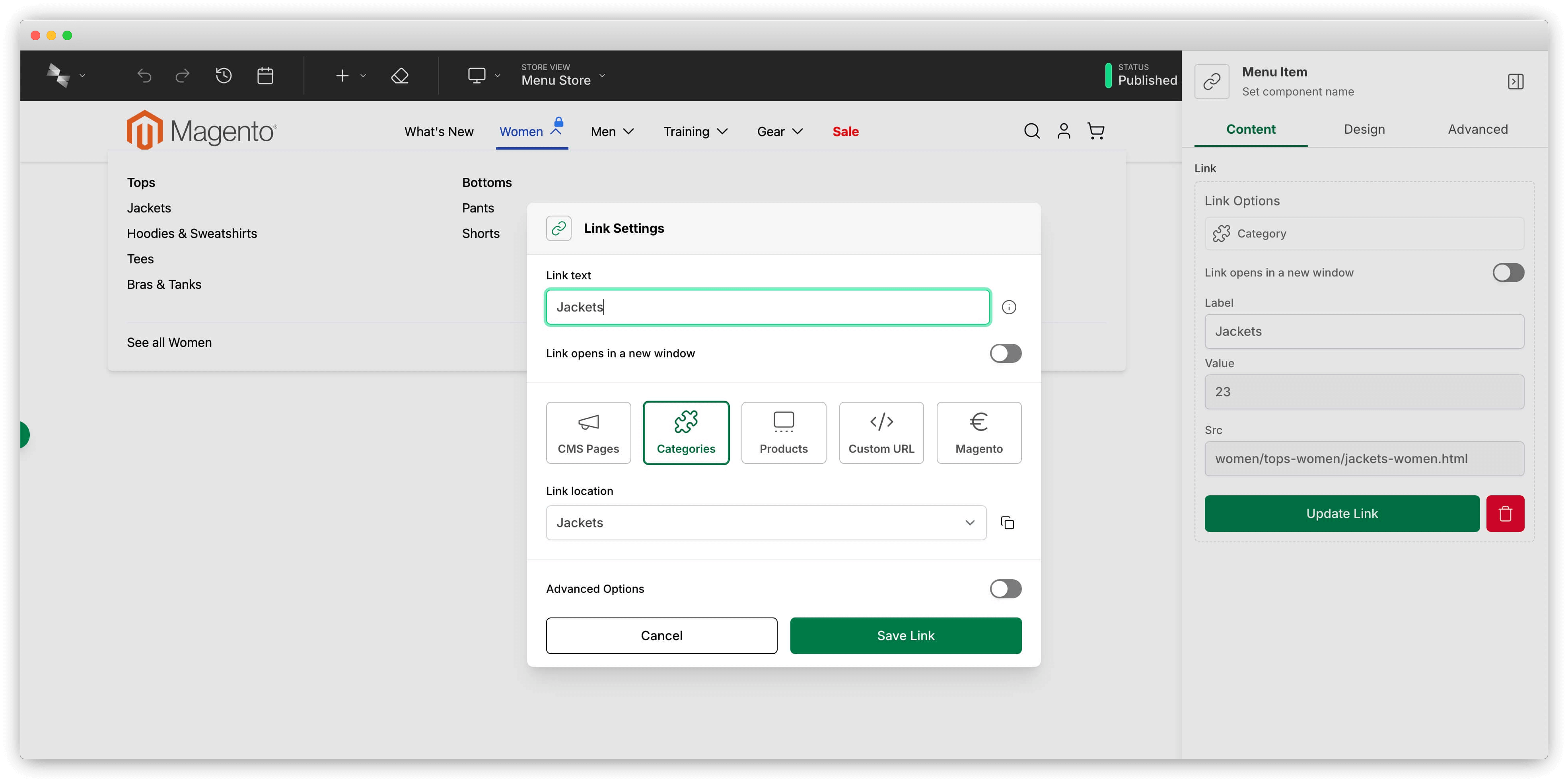
Each menu item is added through the link picker interface, giving you precise control over menu structure and content. The link picker lets you search and select from your existing Magento content or specify custom URLs.
Text-Only Menu Items
Turn on Text Only on a Menu Item to render it as plain text instead of a link. The link picker is replaced by a Label field. A text-only item still holds child items, so it works as a non-clickable column heading above a group of links.
Available since Menu Builder 1.0.0.
Adding Rich Content to Menus
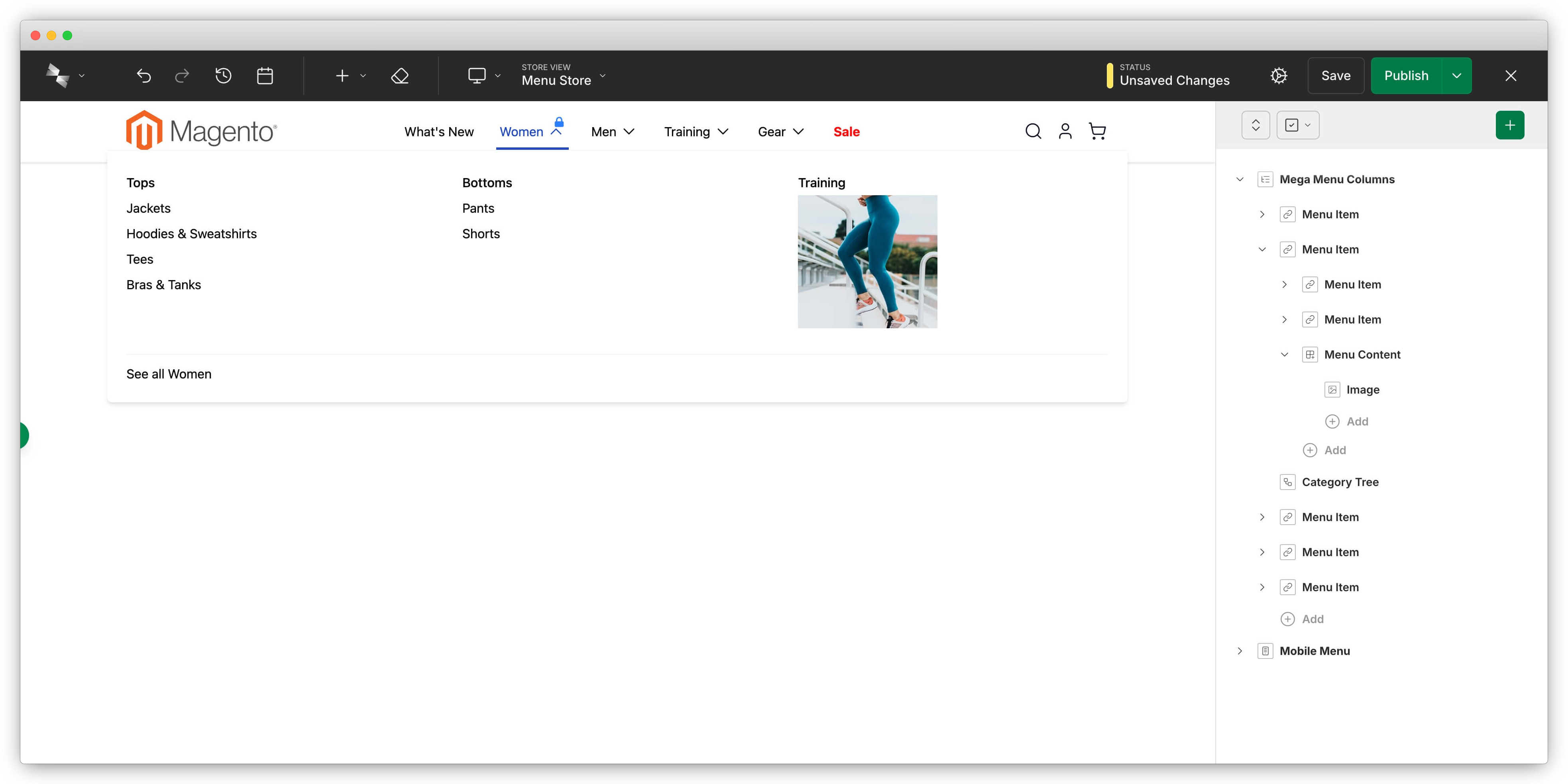
Most Menu Builder layouts support the Menu Content component, which accepts any Hyvä CMS content type. The Menu Content component lets you enhance your menus with images, banners, promotional blocks, custom layouts, or any other CMS component.
Since Menu Builder 1.0.0, Menu Content is a styled container rather than a built-in grid; place Grid or Columns components inside it for grid layouts.
Use rich content in menus to create engaging navigation experiences. For example, add product images to category menus, display promotional banners for sales, or include quick links to popular pages. The Menu Content component integrates seamlessly with your menu structure.
Highlighting menu items: individual menu items can be visually emphasized through design settings in the editor. You can adjust the text color, background color, and font weight to draw attention to specific items like sale categories, new arrivals, or featured sections. This highlighting helps guide customers to important areas of your store.
Locking Menus Open in Preview Mode
When editing menus in the Hyvä CMS editor, you can lock specific menu components to remain open in the preview panel. Menu locking prevents the menu from closing each time the preview reloads with your new content, making it much easier to iterate on menu design and content without repeatedly reopening navigation panels.
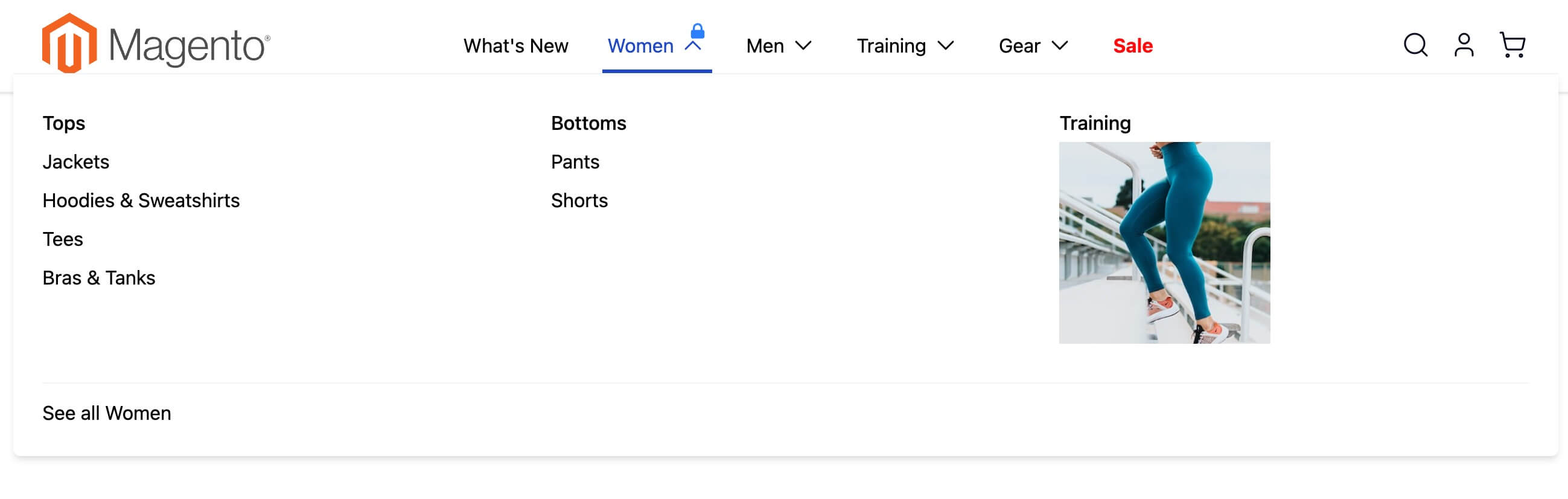
To lock a menu open, hover over a menu item in the preview panel and click the blue lock icon that appears. The locked menu stays expanded as you make changes in the editor, so you can see your edits immediately without reopening the menu after each save. This is especially helpful when editing deeply nested menu structures or multi-level mega menus. For developers implementing this in custom components, see Locking Menus in Preview Mode.
Importing Categories from Your Catalog
The category import feature lets you quickly add multiple categories to your menu at once. Click Import Categories to browse your Magento category tree and select multiple categories simultaneously. The importer creates menu items for each selected category, including nested sub-categories, saving significant time when building category-based navigation.
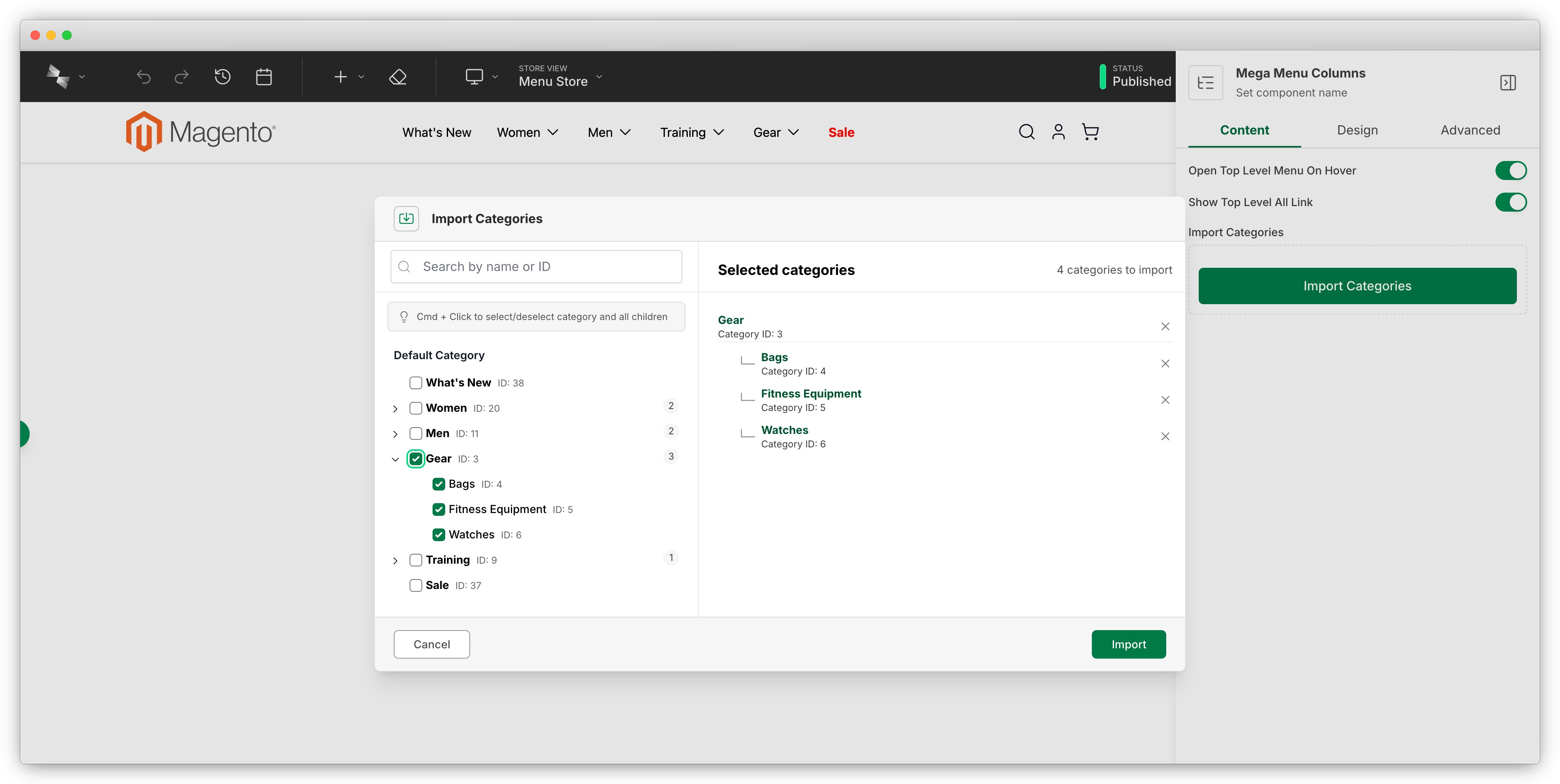
After importing, the created menu items remain independent and fully editable. You can reorder imported categories, edit their display settings, or enhance them with additional rich content. Category imports provide a starting point that you can customize to match your navigation needs. For the developer configuration, see Importing Categories.
Dynamic Category Trees
Category tree components automatically generate menu items based on your current Magento catalog structure. Unlike imported categories, dynamic category trees update automatically when categories are added, removed, or reorganized in your catalog. This automatic synchronization ensures your menu navigation always reflects your current category structure without manual updates.
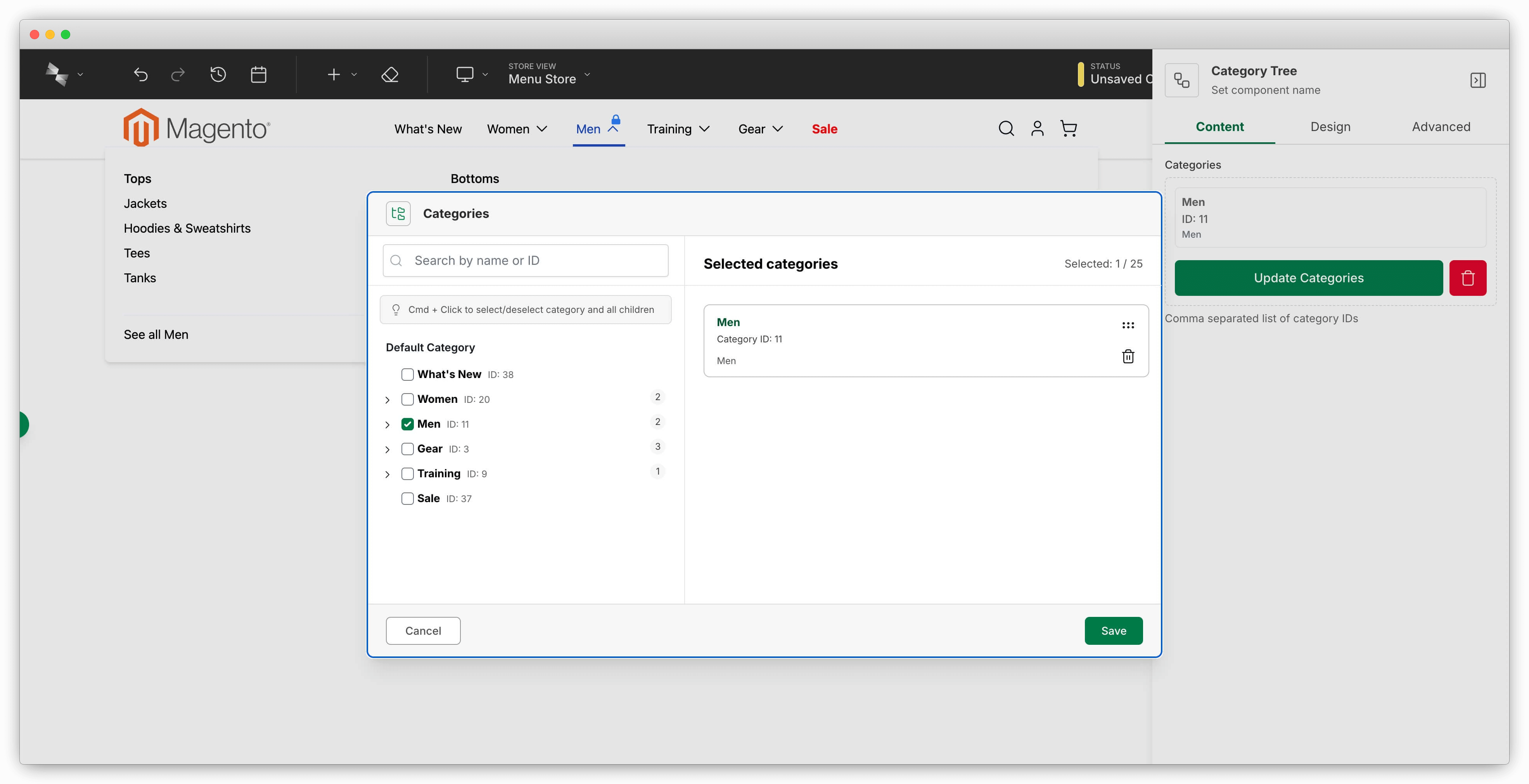
Perfect for ERP-Driven Catalogs
If your product catalog updates automatically from an ERP system, or category changes are frequent, category tree components ensure your navigation always matches your current catalog without any manual menu updates. This zero-maintenance approach is ideal for dynamic catalogs. For the developer details, see Category Tree Expander.