Spam Protection
Form Builder protects your forms from spam and bots with two layers: a honeypot that works automatically on every form, and an optional CAPTCHA you can turn on per form.
The Built-In Honeypot
Every Form Builder form includes a honeypot, a hidden trap that catches automated bots without asking anything of real customers. It works automatically and there is nothing to configure. A genuine visitor never sees it; a bot that fills it in has its submission silently discarded, while still being shown a normal success message so it never learns it was caught.
To disable the honeypot, clear the secret at Stores > Configuration > Hyvä Commerce > Form Builder > Security > Honeypot Secret.
Optional CAPTCHA
You can add a Google reCAPTCHA challenge on top of the honeypot. CAPTCHA is opt-in per form, so you can reserve it for the forms that need it.
CAPTCHA takes two steps to enable:
- Turn it on for the form. In the Liveview Editor, open the Settings (gear) button in the header, expand the Submission group, and switch Enable CAPTCHA on. It is a setting on the form itself, so saving the settings is enough, you do not need to publish, and rolling the form's content back through version history leaves it alone.
- Configure reCAPTCHA at the store level. Go to Stores > Configuration > Security > Google reCAPTCHA Storefront in the Magento admin, add your Google reCAPTCHA site and secret keys, and save. Form Builder registers its own reCAPTCHA slot automatically. Without valid reCAPTCHA keys, the challenge has nothing to validate against. See the Magento reCAPTCHA documentation for the full store-level setup.
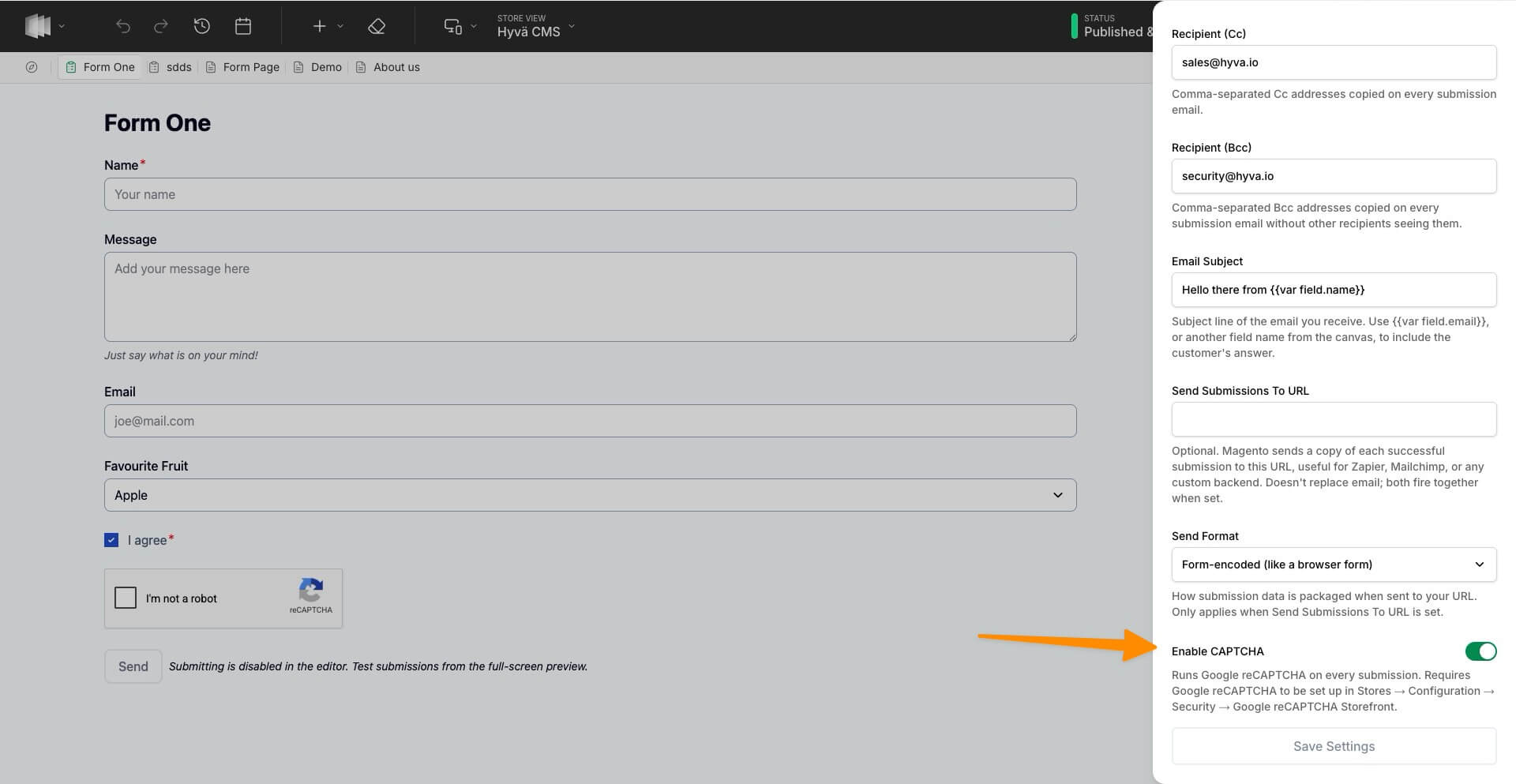
Enable CAPTCHA and reCAPTCHA together
If you switch Enable CAPTCHA on for a form but Google reCAPTCHA isn't configured at the store level, the editor warns you once the form has been saved. Finish the store-level setup above so the challenge has keys to validate against.
Spam Protection When Testing
A test submission from a preview passes through the same honeypot and CAPTCHA checks as a live one, with a couple of preview-specific differences. Testing a form explains how each layer behaves during a test, and why a form with CAPTCHA on but no reCAPTCHA keys cannot be tested.
Related Topics
- Building Forms - create a form and configure its fields.
- Sending and Recipients - where submissions are delivered.
- Testing a Form - send a real test submission before going live.
- Embedding a Form - put your form on a CMS page or block.