Configuring Store Credit
Store Credit settings live in the Magento admin under Stores → Settings → Configuration → Hyvä Commerce → Store Credit. Every setting is scoped to the default scope and to websites, for currency and finance reasons. The two email template settings are the exception: they can also be set per store view, so each store view can send its own language.
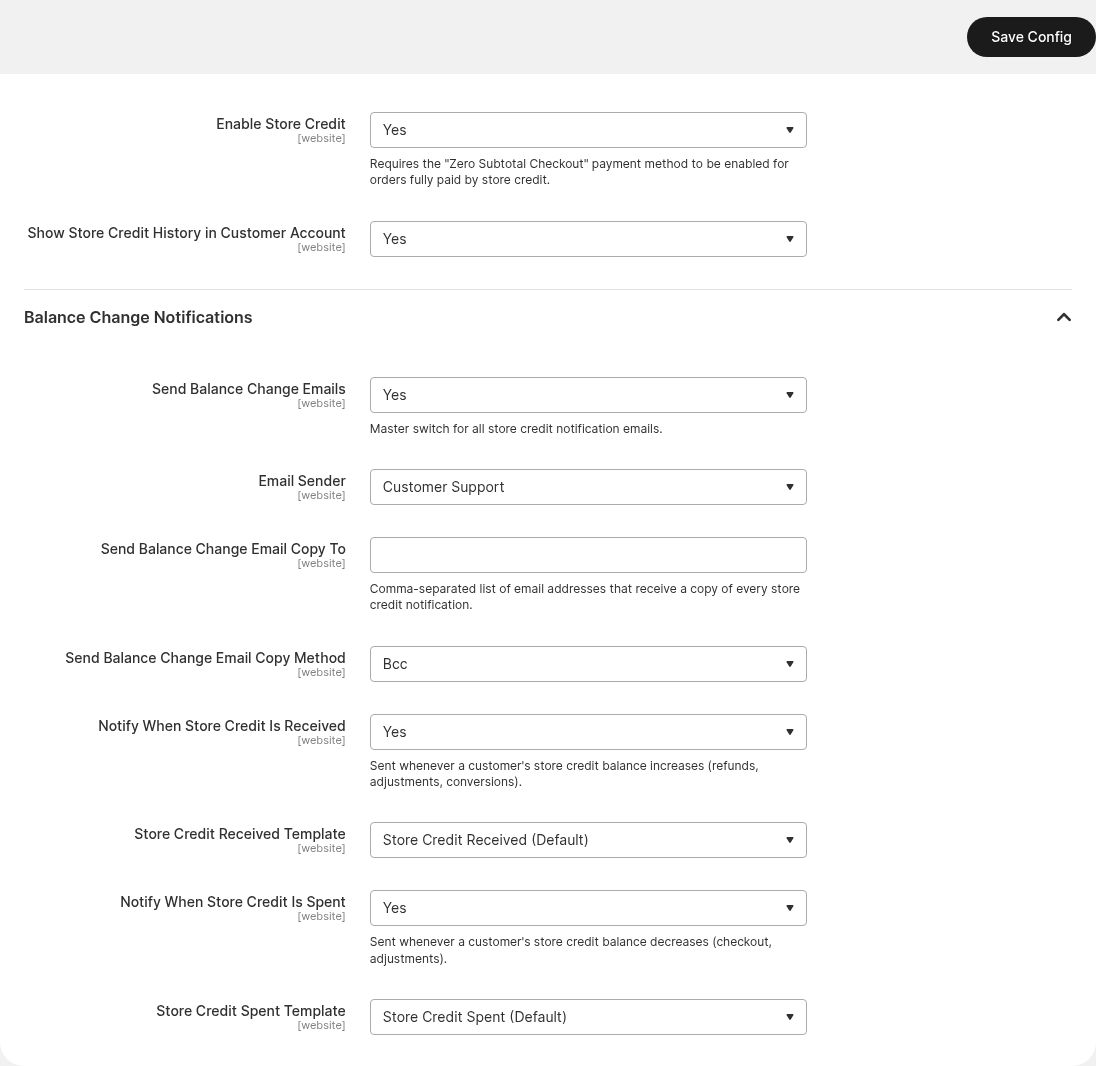
General Settings
The General group turns store credit on and controls how much of it the customer sees.
- Enable Store Credit (
hyva_store_credit/general/enabled) . While this isNo, balances are untouched but nothing is spendable: the My Account page redirects to the account dashboard, the cart and checkout panels do not render, the GraphQL balance query returnsnull, and the header balance link stays hidden. Defaults toNo. - Show Store Credit History in Customer Account (
hyva_store_credit/general/show_history) - shows or hides the credit history table on the customer's Store Credit page. The balance itself stays visible either way. Turn this off if you would rather customers only see what they can spend today. Defaults toYes.
Zero Subtotal Checkout Is Required
The Enable Store Credit field carries this reminder in the admin for good reason: when store credit covers an order in full, every other payment method is hidden and the order can only be placed through Zero Subtotal Checkout. Enable that payment method under Stores → Settings → Configuration → Sales → Payment Methods on the same websites.
Balance Change Notification Settings
The Balance Change Notifications group controls the two transactional emails Store Credit sends when a balance moves. For what those emails contain and exactly when they fire, see Balance Change Emails.
- Send Balance Change Emails (
hyva_store_credit/email/enabled) - the master switch for all store credit notifications. With this set toNo, neither email is sent regardless of the two switches below. Defaults toYes. - Email Sender (
hyva_store_credit/email/identity) - which store email address sends the notifications. Defaults toCustomer Support. - Send Balance Change Email Copy To (
hyva_store_credit/email/copy_to) - a comma-separated list of addresses that receive a copy of every notification. Useful for a finance mailbox that wants a record of credit going out. Empty by default. - Send Balance Change Email Copy Method (
hyva_store_credit/email/copy_method) - whether copies go out asBccon the customer's email, or as a separate email. Defaults toBcc. - Notify When Store Credit Is Received (
hyva_store_credit/email/receive_enabled) - sends an email whenever a balance increases, which covers refunds, admin credit adjustments, and gift card conversions. Defaults toYes. - Store Credit Received Template (
hyva_store_credit/email/receive_template) - the template used for the received email, read for the customer's store view. Defaults toStore Credit Received (Default), registered ashyva_store_credit_email_receive_template. - Notify When Store Credit Is Spent (
hyva_store_credit/email/spend_enabled) - sends an email whenever a balance decreases, which covers checkout and admin debit adjustments. Defaults toYes. - Store Credit Spent Template (
hyva_store_credit/email/spend_template) - the template used for the spent email, read for the customer's store view. Defaults toStore Credit Spent (Default), registered ashyva_store_credit_email_spend_template.
Per-adjustment Control Beats Config for One-offs
The config switches decide whether a type of balance change is announced. When an admin user adjusts a balance by hand, the Notify Customer checkbox on that form decides whether that single adjustment emails the customer, so you can correct a balance quietly without turning the whole notification off. See Managing Store Credit Balances.
Overriding the Default Email Templates
Both notification emails are ordinary Magento transactional templates, so you can customize them without touching code. Go to Marketing → Communications → Email Templates, click Add New Template, load Store Credit Received or Store Credit Spent as the template to start from, save your version, then select it in the matching template setting above.
The templates receive four variables: customer_name, change_amount (the absolute amount that moved, already formatted as a price), new_balance (the balance after the change, also formatted), and reason. The reason variable carries the external reason only, so an internal note an admin user wrote for colleagues never reaches the customer.
Related Topics
- Balance Change Emails - what each email says and which ledger events trigger it.
- Managing Store Credit Balances - the admin screens these settings affect.
- Installing Store Credit - the setup steps that come before configuration.