Managing Store Credit Balances
Everything an admin user does to a balance happens in one panel, and that panel shows up in two places: on its own page from the store credit overview, and as a Store Credit tab on the customer edit page. Both are the same three sections, so pick whichever route suits what you are doing.
Finding a Balance
Customers → Store Credit lists every customer who has a store credit balance, with the customer ID, the website the balance belongs to, the amount, its currency, and when it last changed. The Action column links through to that customer's balance panel.
If you are already looking at a customer, the faster route is Customers → All Customers, open the customer, and pick Store Credit from the tabs on the left.
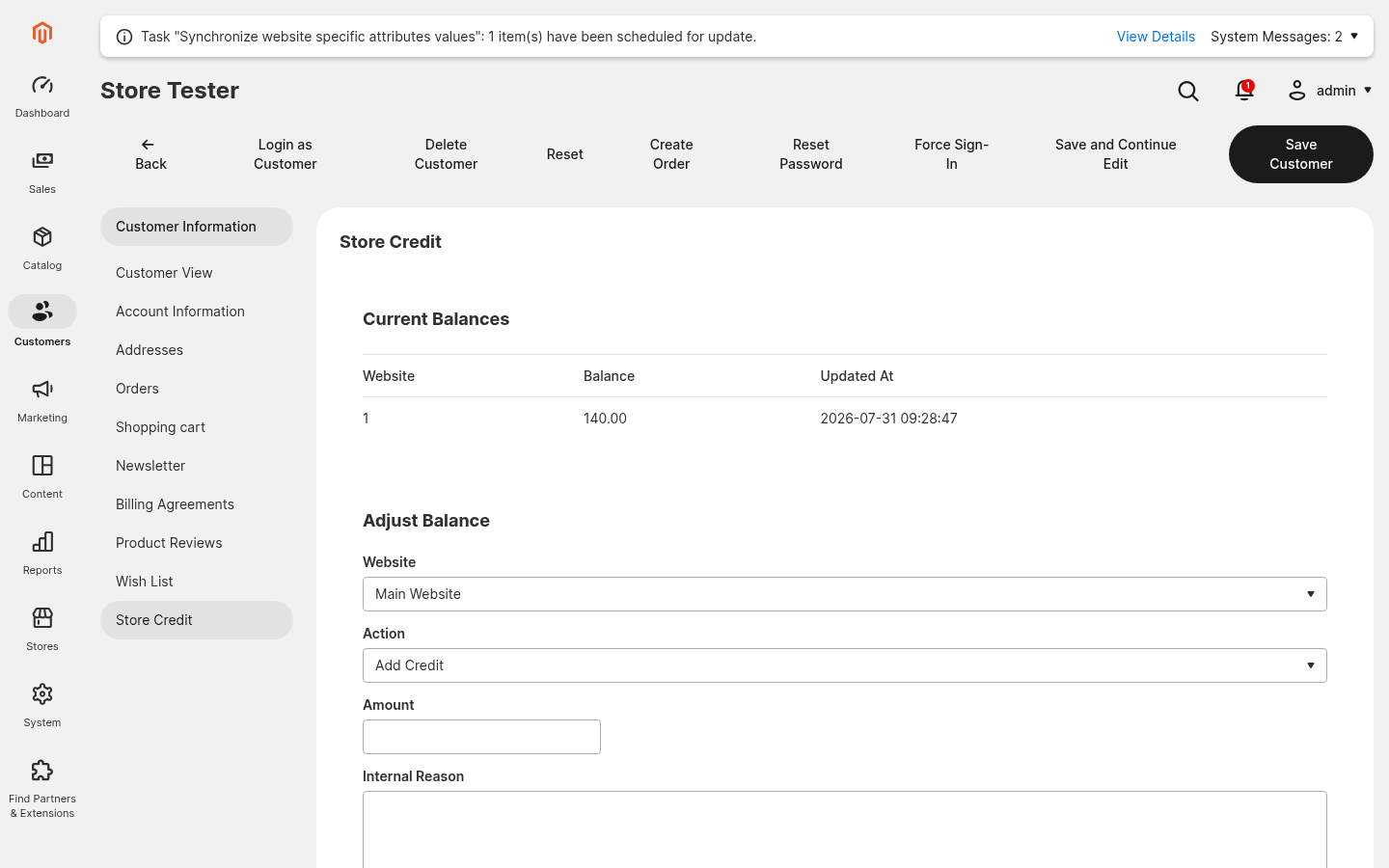
Reading Current Balances
The Current Balances section lists one row per website the customer holds credit on, with the amount and when it last moved. A customer who shops on several of your websites has a separate balance for each, because a balance belongs to a website and is held in that website's base currency. There is no combined total, and credit cannot be moved between websites.
Adjusting a Balance
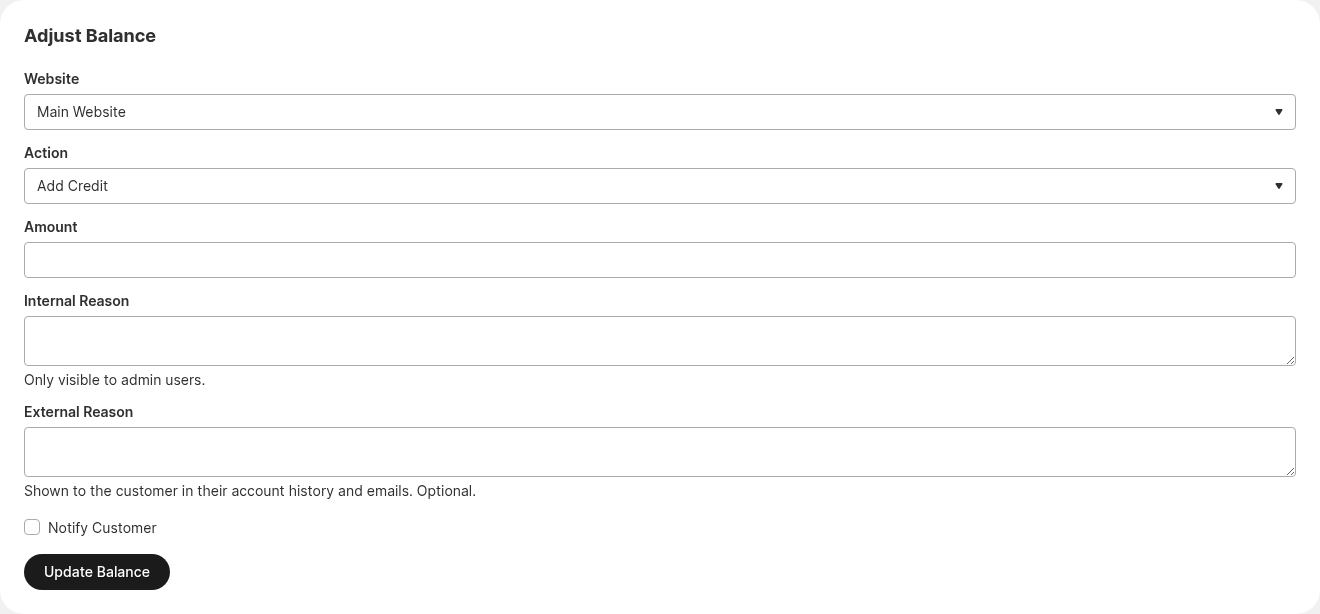
The Adjust Balance section is where credit is added or taken away.
-
Website - which balance to change. The list holds every website the store has, not only the ones the customer already has credit on, so this is also how you open a customer's first balance on a website.
-
Action -
Add Creditto increase the balance,Subtract Creditto decrease it. -
Amount - how much to move, as a positive number. The action decides the direction, so never enter a minus sign here. Amounts are held to four decimal places.
-
Internal Reason - required. This is the note your colleagues read in the credit history and it never leaves the admin, so write what actually happened: "goodwill after support ticket 4412" rather than "adjustment".
-
External Reason - optional. This is the only text the customer ever sees, in their account history and in the notification email. Leave it empty and the customer's history falls back to showing the reference instead.
-
Notify Customer - whether this particular adjustment emails the customer. Leave it unchecked to correct a balance without announcing it, even when balance change emails are switched on for the website.
Click Update Balance to write the change. A confirmation message reports the new balance, and the adjustment appears at the top of the credit history straight away.
A Balance Can Never Go Below Zero
Subtracting more than the customer has is refused with an error rather than clamped to zero, and nothing is written to the ledger. Check the current balance first if you are clearing an account down.
Reading the Credit History
The Credit History section is the full audit trail for that customer, newest first, and it is the reason the ledger exists.
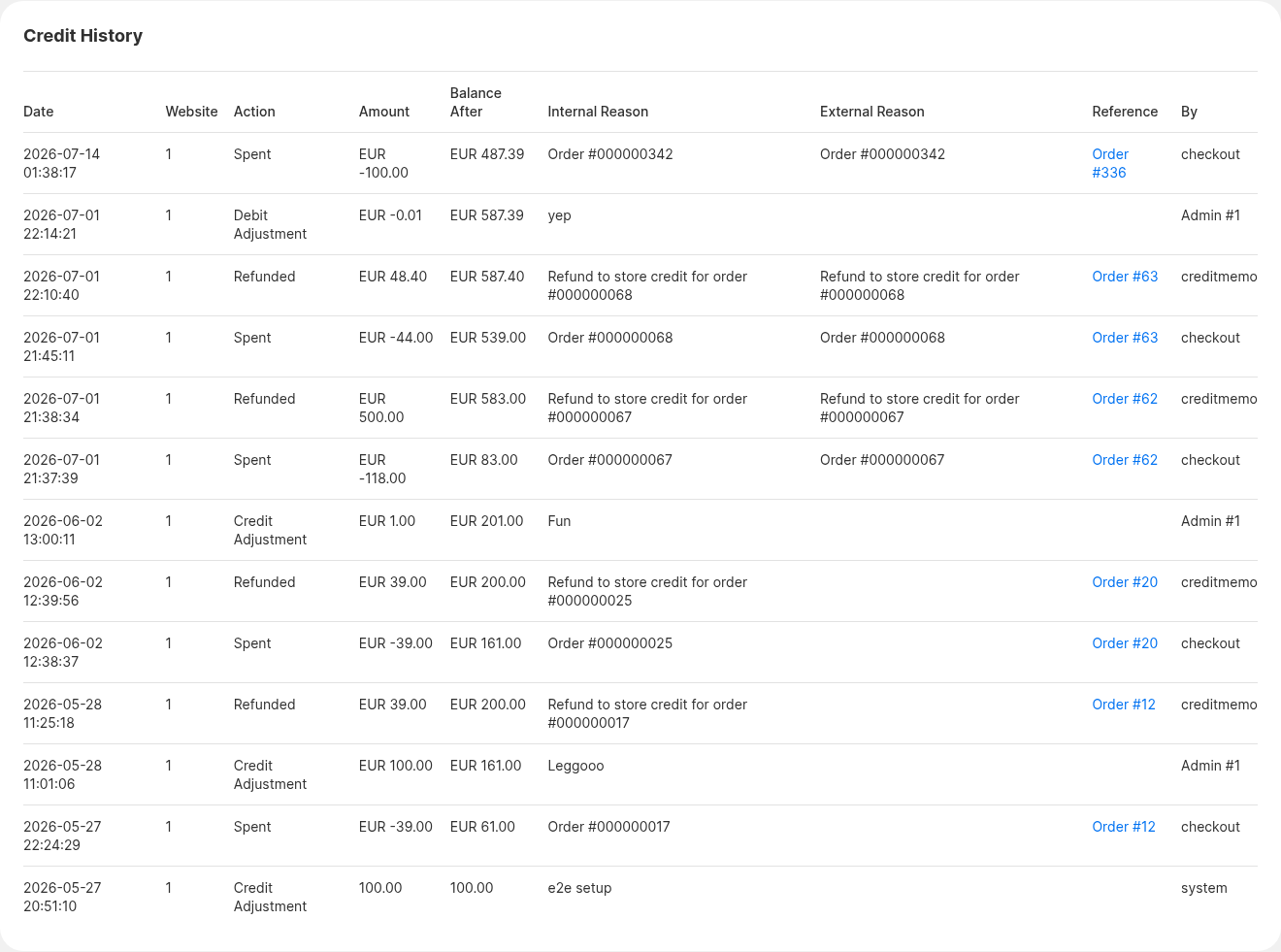
Nine columns tell you everything about each change:
- Date and Website - when it happened and which balance it touched.
- Action -
Spent,Refunded,Reverted,Credit Adjustment,Debit Adjustment,Converted, orImported. - Amount and Balance After - the signed change, and the balance that followed it. The Balance After column chains down the page, so you can trace how a balance got where it is.
- Internal Reason and External Reason - the two notes side by side, so you can see at a glance what the customer was told.
- Reference - the order or credit memo the entry belongs to, linked through to that document.
- By - what caused it:
checkout,creditmemo,import,system, anAdmin #for an admin adjustment, or anAPI:entry for an integration.
Nothing in this table can be edited or deleted. The ledger is append-only: a mistaken adjustment is corrected by making the opposite adjustment, which leaves both entries visible.
Ledger Entries Outlive Customers
Deleting a customer removes their balance but keeps their ledger rows for audit purposes, with the customer link cleared. Credit that was handed out stays accounted for.
Related Topics
- Refunding to Store Credit - the other way credit lands on a balance.
- Importing and Exporting Balances - adjusting many balances at once.
- Balance Change Emails - what the Notify Customer checkbox sends.