Multiple Roles per Admin User
Magento gives every admin user exactly one role, which means a person who is both a content editor and a customer service agent needs a third role that merges the two. Advanced Admin Permissions lets you assign any number of roles to a single admin user instead, so you build one role per job and hand out the combinations you need.
Assigning Several Roles to an Admin User
Roles are assigned on the User Role tab of the admin user edit page, at System → Permissions → All Users → [user] → User Role. With Advanced Admin Permissions installed, that tab is a multi-select checkbox grid rather than Magento's single-choice radio grid.
- Open
System → Permissions → All Usersand click the admin user you want to change. - Switch to the User Role tab.
- Tick every role the user should hold. The grid filters, sorts and pages as usual, and your ticks survive all three.
- Save the user.
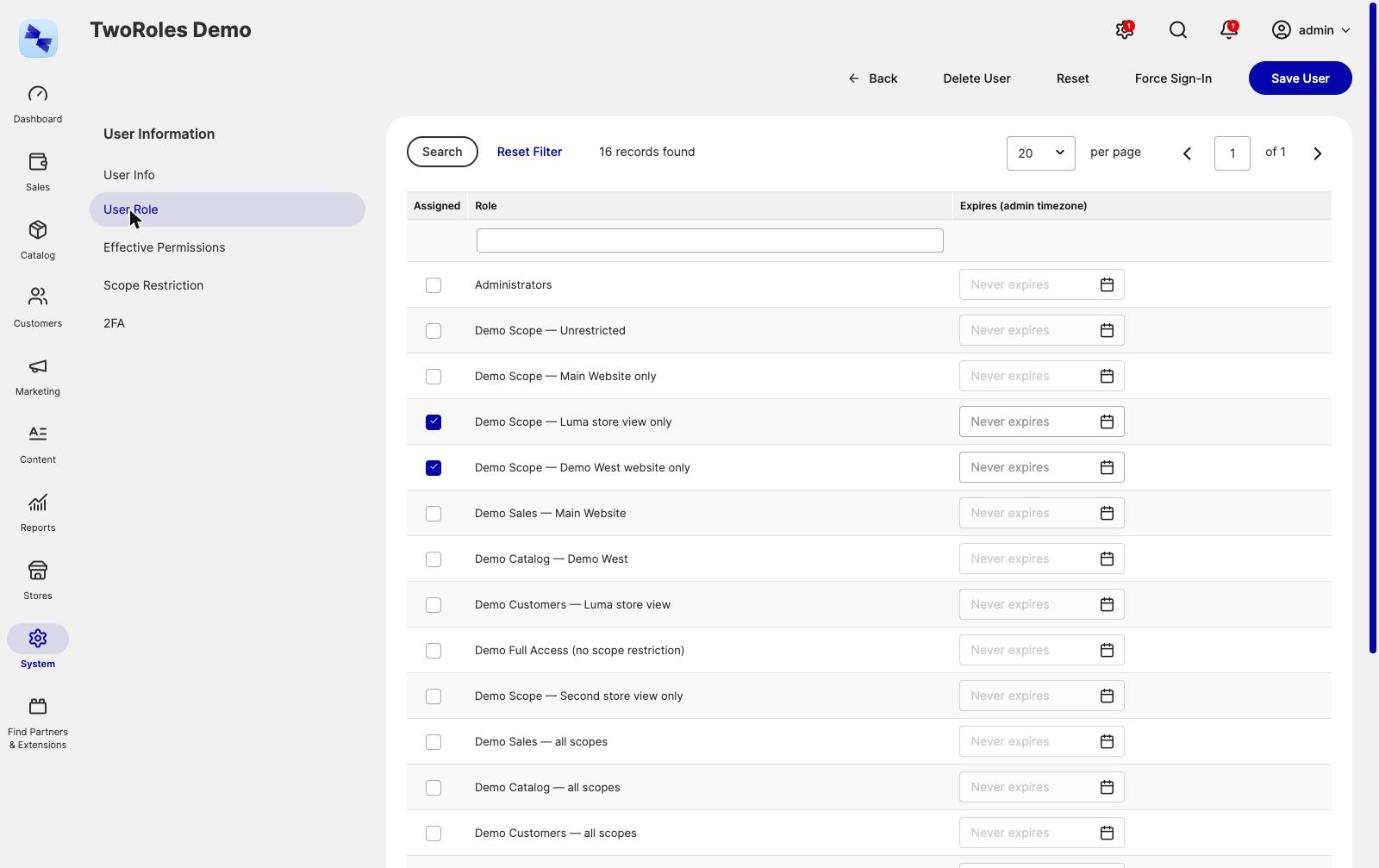
The Role column on the users grid at System → Permissions → All Users then lists every role each user holds, so you can see the whole picture without opening anyone.
Existing users are unaffected
An admin user who had one role before the install still has that one role, and behaves exactly as before. Advanced Admin Permissions stores extra roles as additional native authorization_role rows, so no database migration runs against your existing users and nothing else in Magento needs to change.
How Permissions Combine Across Roles
When an admin user holds several roles, every permission check considers all of them and grants access if any one of them allows the resource. This is a union: roles add up, they never subtract from each other.
The union applies everywhere a permission is checked, not just in the admin panel menu. Controller access, the buttons and sections a page renders, and the REST, SOAP and GraphQL APIs all answer the same way.
An example. Give a user a Content Editor role that allows Magento_Cms::page and a Customer Service role that allows Magento_Sales::creditmemo, and that user can reach both CMS pages and credit memos. Neither role needs to know about the other, and taking the Customer Service role away leaves their CMS access untouched.
Build small roles, combine them
The union model rewards narrow roles. One role per job - Catalog, Orders, Content, Reports - is easier to reason about and to audit than a handful of overlapping ones, because you can see who holds what from the Role column alone.
Negative (Deny) Roles: Carving Out Exceptions
A pure union has an obvious gap: there is no way to say "everything this role allows, except refunds". Advanced Admin Permissions closes it with negative roles. Flag a role as negative and the resources it lists stop being grants and become denials that override grants from the user's other roles. Deny wins.
To flag a role as negative:
- Open
System → Permissions → User Rolesand click the role. - Switch to the Role Resources tab.
- Tick the Negative (deny) role checkbox at the top, above the resource tree whose meaning it inverts.
- Tick the resources that should be denied, and save the role.
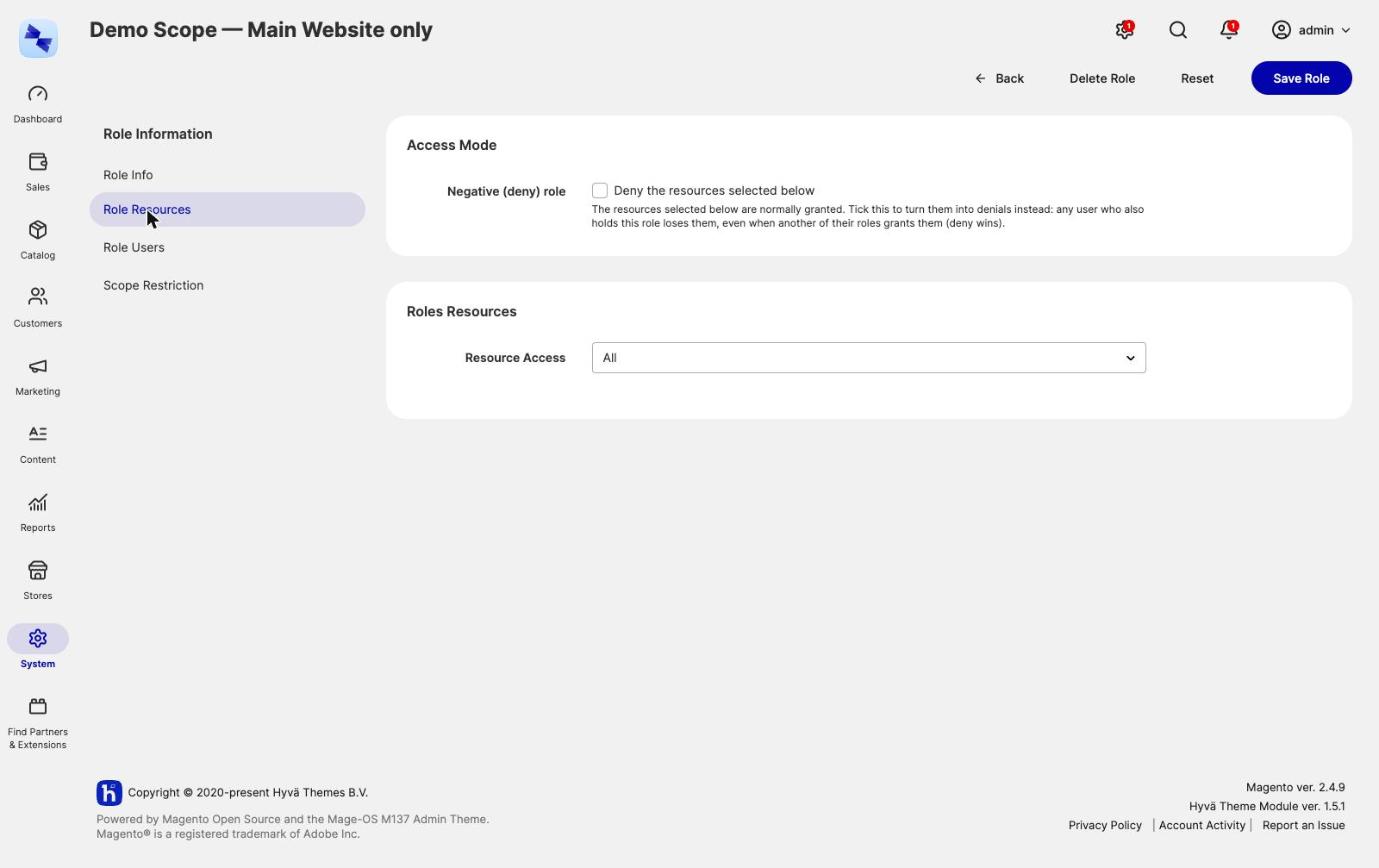
Any admin user who also holds that role is denied those resources, whatever their other roles grant. So a user holding Manager and a negative No Refunds role gets everything Manager allows except the refund resources.
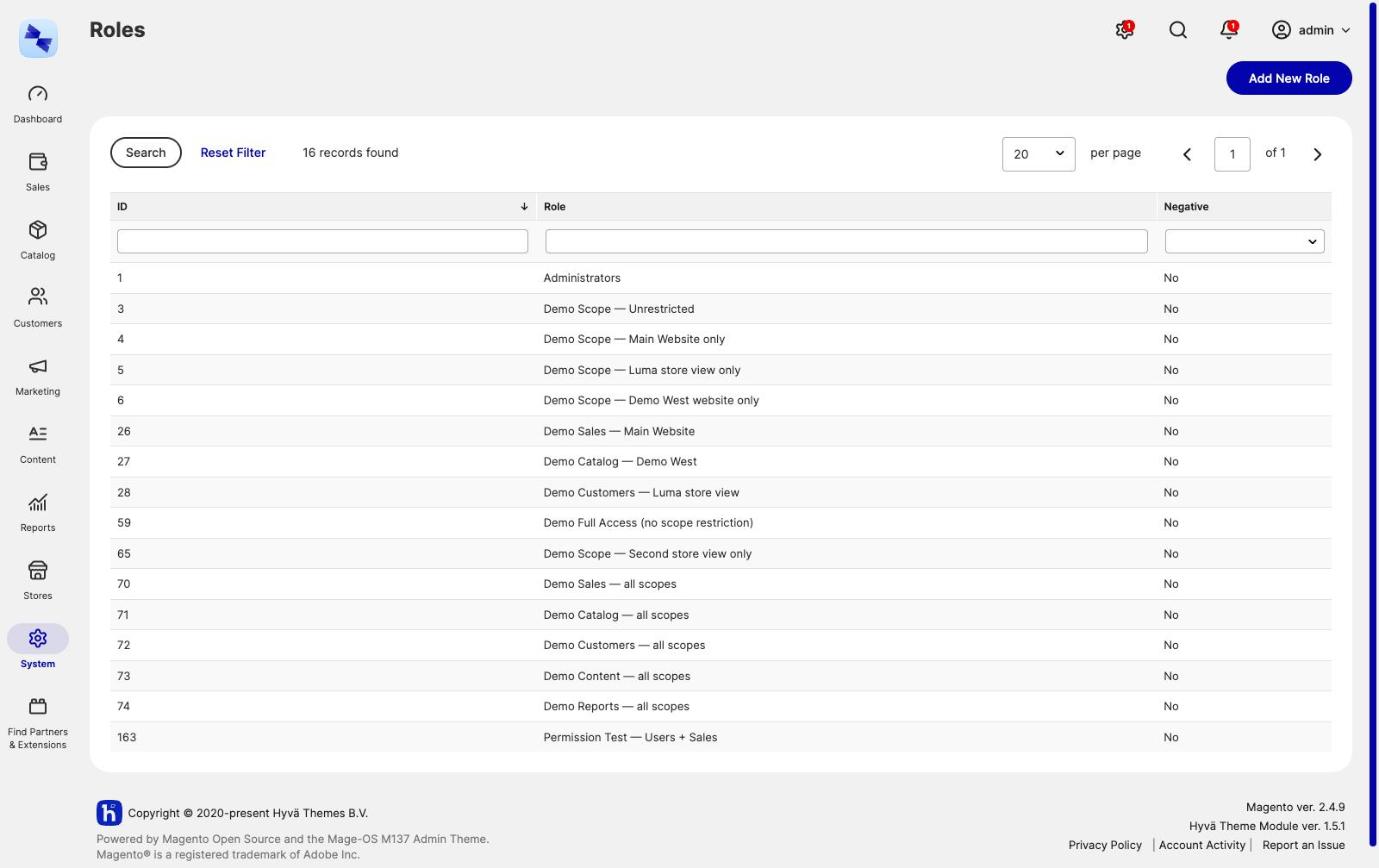
The roles grid at System → Permissions → User Roles gains a Negative column, sortable and filterable, so a role that takes access away is visible without opening it.
A negative role denies, it does not grant
The resource tree on a negative role reads as a deny list. A user who holds only a negative role has no admin access at all, because nothing grants them anything. Negative roles are meant to be held alongside ordinary roles, never on their own.
Behind the scenes the flag lives in a hyva_permissions_restrictive_role table. The code and the database call it restrictive, while the admin panel calls it negative - same thing. With no negative roles in play, permission evaluation is exactly the union described above, so this is fully backwards compatible.
What a Negative Role Denies
A negative role denies only the resources that are fully ticked in its resource tree. A partly ticked parent stays available, so a negative role denying Credit Memos doesn't take away the Sales menu or the Orders grid. The top-level admin resource is never denied.
A negative role that can't be evaluated denies everything it could cover, so a broken negative role fails closed rather than open.
When Flagging a Role as Negative Is Refused
Making a role negative is refused in three cases, so a denial can't lock anyone out of the admin:
- The role allows all resources. A negative all-resources role would deny everything to everyone holding it.
- You hold the role yourself. Nobody edits their own access, as explained in Permission Guardrails.
- Flagging it would leave a holder with nothing. If any user holding the role would afterwards have no role that grants anything, the flag is refused.
The all-resources and lock-out checks also apply to the hyva:admin-permissions:set-negative-role command. Only the "you hold it" check needs an acting admin. Clearing the negative flag is never refused by these checks, but turning a negative role back into an ordinary one counts as a grant under the permission guardrails.
Negative Roles Don't Expire
A negative role's grant cannot have an end date: a denial holds until the role is taken away. Every assigned negative role denies, whatever the dates on the user's other grants say. Making a role negative deletes the existing end dates of its grants, and trying to set an end date on a negative role's grant is refused with:
The role "%1" is a negative role, and a denial holds until the role is taken away: its grant cannot have an end date.
Assigning a Negative Role
Assigning a negative role needs no held resources, because a negative role only takes access away. An admin can therefore assign a negative role that denies resources they don't hold themselves. For the same reason, a negative role grant is never capped at the acting admin's own expiry horizon. Both are exceptions to Rule 2 and Rule 4 of the permission guardrails.
Assigning a Role to Many Users at Once
Reorganizing roles across a team one user at a time gets old fast. The users grid at System → Permissions → All Users has two mass actions for that: Assign a role and Remove a role.
- Open
System → Permissions → All Users. - Tick the users you want to change, or use Select All.
- Pick Assign a role or Remove a role from the Actions dropdown.
- Choose the role from the dropdown that appears, and confirm.
The chosen role is added to, or removed from, every selected user while leaving all their other roles untouched. Users already in the target state are skipped rather than written again.
Two details worth knowing before you run one across a large selection:
- The dropdown starts on
-- Please Select --, so the first role in the list cannot be applied by accident. - Your own account is skipped, including under Select All. Nobody edits their own access, which is covered in Permission Guardrails.
The whole run is one database transaction, so a failure part-way through leaves no half-updated selection behind, and every change it makes lands in the Role Assignment Audit Log.
When Role Changes Take Effect
Changing anyone's roles raises their ACL reload flag, so an admin who is logged in while their roles change stops answering permission checks with the roles they used to have. Magento caches the role on the session, and nothing but a save of the user clears it, so this matters: without the flag, a revoked role would keep working until the user logged out.
Related Topics
- Permission Guardrails - why a role assignment can be refused, and the rules behind it.
- Time-Boxed Role Grants - give one of these roles an end date.
- Effective Permissions Viewer - see what the union of a user's roles actually adds up to.
- Role Assignment Audit Log - the record of every grant and revocation, including bulk runs.