Configuring Linked Products
Linked Products has one setting: a switch that shows or hides linked product swatches on the product page. It lives in the Magento admin under Stores → Settings → Configuration → Hyvä Commerce → Linked Products, and you can set it for the default scope, a website, or a single store view.
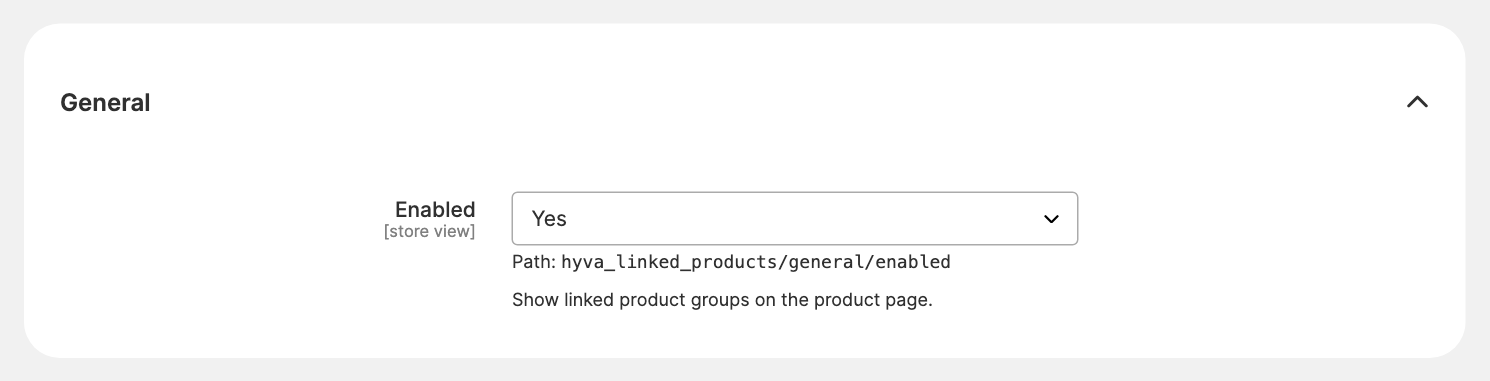
Showing or Hiding Linked Products on the Storefront
The General group holds the storefront switch for Linked Products.
- Enabled (
hyva_linked_products/general/enabled) - shows linked product groups and their swatches on the product page. Set it toNoon a website or store view to turn the swatches off there while the rest of your stores keep them. Defaults toYes.
With Enabled set to No, the product page renders as if Linked Products were not installed: the swatch block is removed from the layout, and configurable product options return to their usual position.
Refresh the Page Cache After Changing the Switch
Saving the setting marks the full page cache as invalidated, but doesn't clear it. Refresh the Page Cache in System → Tools → Cache Management (or run bin/magento cache:clean full_page) to see the change on cached pages. With Varnish in front of Magento, pages already cached in Varnish stay as they are until they expire or are purged.
What the Linked Products Switch Does Not Control
The Enabled setting only affects the product page. With the switch off, these keep working:
- the
Catalog → Linked Product Groupsgrid and the group edit form; - the Linked Products section on the Product Edit page, and the group updates it makes when you save a product;
- CSV import and export, from the admin and from the CLI.
Your groups are never deleted or changed by the switch, so turning it back on restores the swatches as they were.
Related Topics
- Linked Products on the Storefront - what the switch shows or hides.
- Customizing the Product Page Output - how the switch affects layout handles and blocks in your theme.