Importing and Exporting Groups
Linked Products imports and exports Linked Product Groups as CSV, one row per group. Files use SKUs and attribute codes, never database IDs, so you can export groups from staging and import them into production, or build groups for a whole catalog in a spreadsheet. Groups are a regular Magento import and export entity, Linked Product Groups, so they use the standard System → Data Transfer screens, Import History, and tooling built on Magento's import framework that runs as an admin or API user (see Import Permissions). The bin/magento commands run the same import and export for large catalogs and automation.
The Linked Products CSV Format
A Linked Products CSV file has a header row and exactly three columns:
group_name,skus,link_attributes
"Summer Tee","TEE-RED|TEE-BLUE|TEE-GREEN","color"
"Winter Boots","BOOT-38|BOOT-39|BOOT-40","size,color"
group_name- the import key. Group names are unique. A name that already exists replaces that group's products and link attributes. A new name creates a group. Matching ignores case and accents, sobags betaupdates a group namedBags Beta, andCafeone namedCafé. A group without a name is exported asGroup #<group ID>, for exampleGroup #12. If another group already has that name, ignoring case and accents, a number follows, fromGroup #12 (2)up to(20); a group for which none of these names is free is left out of the export. To update that group by import, name it inCatalog → Linked Product Groupsbefore you export. Otherwise, because no group has that name, importing the row creates a new group namedGroup #12and moves the products into it. Group 12 stays, with no name and no products, and later exports leave it out.skus- the group's product SKUs, separated by|.link_attributes- attribute codes, separated by,. Quote the field when it holds more than one code. Only attributes that can link products are accepted, see Which Attributes Can Link Products.
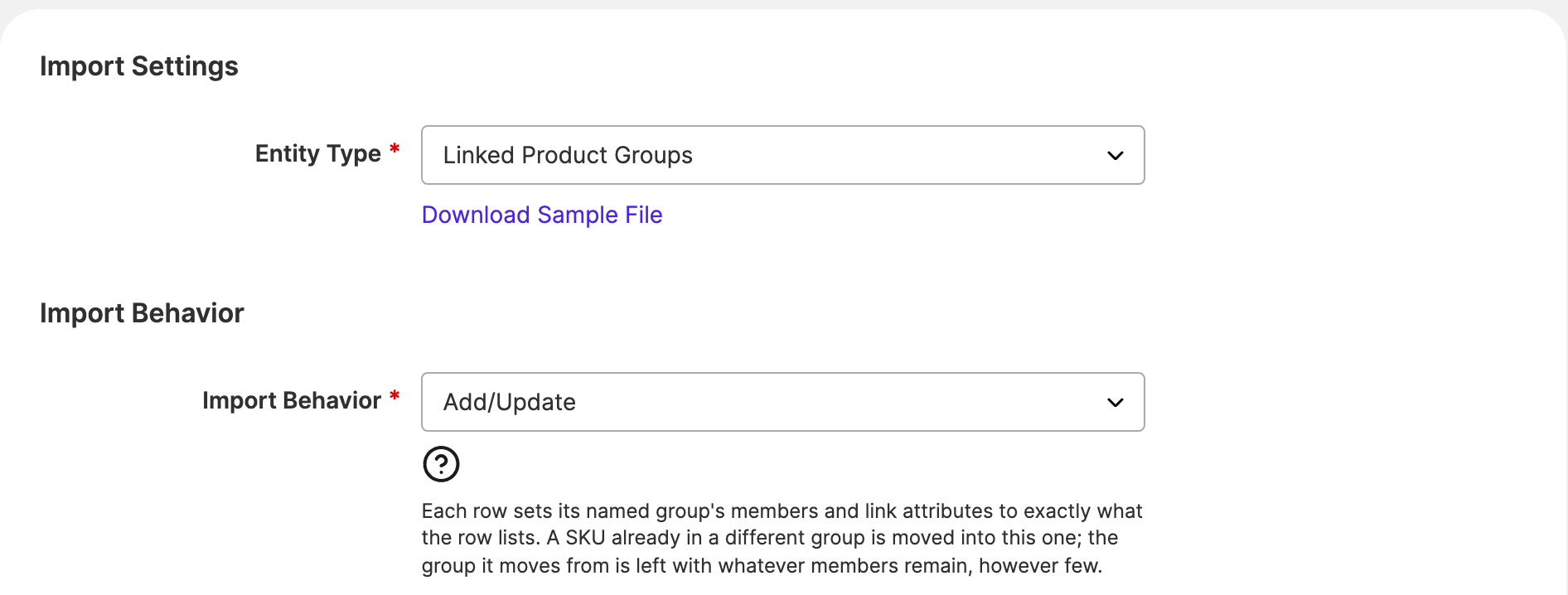
A UTF-8 byte order mark is accepted, so a file saved from Excel as CSV UTF-8 imports as-is. On the Import screen, Download Sample File next to the entity gives you an example file.
Spreadsheet-Safe Exports
On export, a cell that starts with =, +, -, or @ gets a leading single quote, so spreadsheet software treats it as text instead of a formula. The importer strips that quote again, so an export, edit, and import round trip changes nothing. Other tools will see the quote.
Exporting Linked Product Groups from the Admin
You can export groups in two ways:
System → Data Transfer → Export, with Entity Type set to Linked Product Groups, exports every group that has products. Like every Magento export, it is queued: the file appears in the list below the form once theexportProcessormessage queue consumer has run.- Export to CSV in the Linked Product Groups grid's Actions menu exports the ticked groups, or every group that matches the current filter when you use Select All. It downloads the file right away, as does the CLI export.
On the Export screen, only group_name can be filtered, for example to export the groups whose name contains Summer. The skus and link_attributes rows have no filter, but their Exclude checkbox leaves the column out of the file.
No export writes groups without products, not even groups you tick in the grid. A row without SKUs can't recreate such a group usefully on import.
Importing Linked Product Groups from the Admin
To import groups:
- Go to
System → Data Transfer → Import. - Set Entity Type to Linked Product Groups.
- Choose an Import Behavior:
- Add/Update sets each named group's products and link attributes to exactly what its row lists, and creates groups that don't exist yet.
- Delete deletes every group named in the file. The
skusandlink_attributescolumns are optional then. Groups not named in the file are left alone.
- Choose your file under Select File to Import.
- Click Check Data. Nothing is saved yet.
- Read the validation results, then click Import.
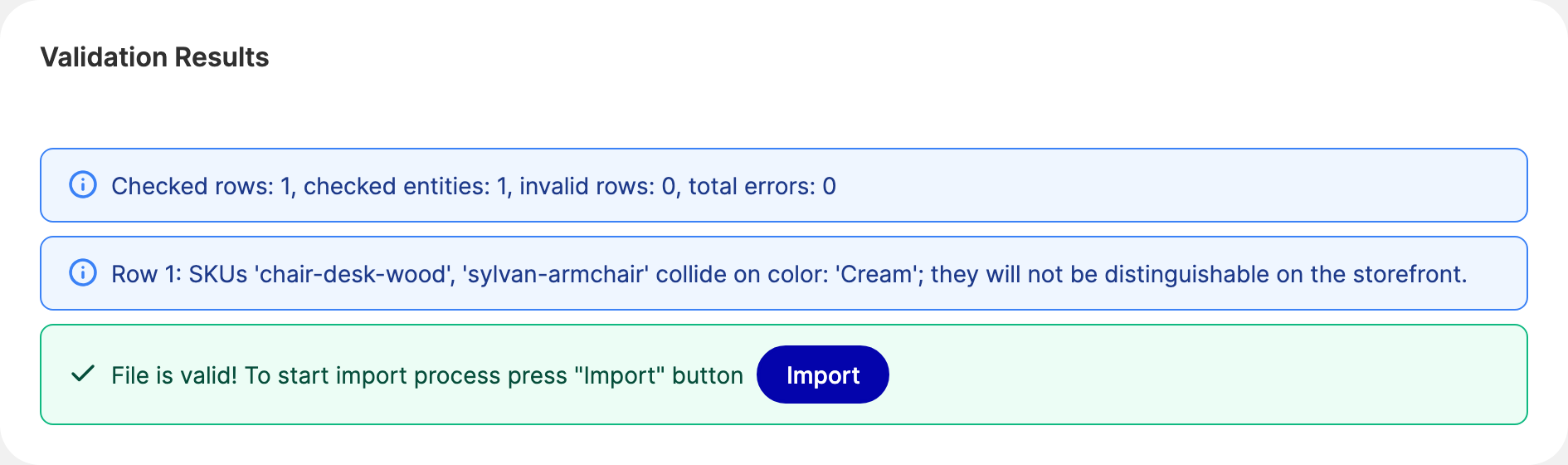
Check Data lists errors and warnings with the rows they apply to, and notices such as products being moved from another group. The import reports how many groups it created, updated, and deleted, and every import from the admin is recorded in System → Data Transfer → Import History.
Moving Products Between Groups
A product belongs to one group at most. When a row lists a SKU that is already in another group, Add/Update moves the product into the imported group and reports it as a notice. The group the product leaves keeps its other products, however few, and is never deleted.
An import doesn't require a minimum number of products: a row can create or leave a group with one product or none. The group form only saves groups with at least two products, so such a group stays in the grid until you add products to it or delete it.
Import Permissions
Importing from the Import screen requires the Import permission of Magento's Data Transfer ACL resources. On top of that, every import from the Import screen, the REST API, or a Scheduled Import Run requires Linked Product Groups create/edit for Add/Update or delete for Delete, checked against whoever runs it:
- On the Import screen, the admin user.
- On Adobe Commerce, for the REST endpoints
POST /V1/import/csvandPOST /V1/import/json, the integration or admin token, which also needs the endpoint's own import API resource. - On Adobe Commerce, for Run on a Scheduled Import, the admin who clicks it.
Imports run anywhere else are refused, whether or not a user is involved: only the CLI import and imports Magento runs by cron skip the check. This includes Adobe Commerce's asynchronous REST endpoints (/async/V1/import/csv, /async/V1/import/json, and their /async/bulk/ forms), which run later in the async.operations.all message queue consumer. Their bulk operation is reported as complete, and the refusal appears only in the operation's result data. It also includes third-party commands and message queue consumers that run Magento's import framework themselves. To import without a user, use the CLI import or, on Adobe Commerce, a Scheduled Import run by cron.
Export Permissions
In System → Data Transfer → Export, requesting a Linked Product Groups export requires both Magento's Export permission (Magento_ImportExport::export) and Linked Product Groups view permission (Hyva_LinkedProducts::group_view). Downloading or deleting an existing native Linked Product Groups export file requires the same permissions, including files generated by another admin. Permission is checked before the request is queued; the background consumer processes the authorized job without an admin session.
The native export file list is shared. Seeing a file in the list does not grant permission to download or delete it, and files are not private to the admin who generated them. A file in the list counts as a Linked Product Groups export when its name contains hyva_linked_groups, in any letter case. This includes files that an Adobe Commerce Scheduled Export writes to the native export folder.
The Linked Product Groups grid's Export to CSV action requires only Linked Product Groups view permission. The CLI export runs with server access and requires no admin session. On Adobe Commerce, Run on a Scheduled Export of Linked Product Groups requires Linked Product Groups view permission too, checked against the admin who clicks it; without it, the run fails and the error log says "You do not have permission to export linked product groups." Only Scheduled Exports run by cron, and custom exporters that run outside the admin, skip the check.
Importing and Exporting Linked Product Groups from the CLI
The CLI commands run the same import and export without the web server's time and upload limits, which makes them the better choice for large catalogs and deployment scripts.
# Export every group to a file, or to stdout when no file is given
bin/magento hyva:linked-products:export var/export/linked-product-groups.csv

# Validate a file without saving anything
bin/magento hyva:linked-products:import var/import/linked-product-groups.csv --dry-run

# Refuse the whole file if validation finds any error
bin/magento hyva:linked-products:import var/import/linked-product-groups.csv --strict

# Import with Add/Update, the default
bin/magento hyva:linked-products:import var/import/linked-product-groups.csv

# Delete the groups named in the file
bin/magento hyva:linked-products:import var/import/linked-product-groups.csv --behavior=delete
The export file name must end in .csv. The export won't overwrite an existing file unless you add --force. The CLI prints every finding of a run, including warnings and notices.
By default, the CLI import skips rows with errors and imports the rest, with no limit on the number of errors. A row whose SKUs an earlier row in the file already claimed is imported without those SKUs. It exits with an error code only when nothing was imported and there were errors. Unlike Check Data, --dry-run has no error limit and lists every warning; it exits with an error code when the file has errors.
With --strict, the import refuses the whole file when validation finds any error: nothing is written, and the command exits with an error code. To check a file in a deployment script before importing it, use --dry-run: it exits with an error code whenever the file has errors, with or without --strict. A row that fails after validation, while its products are looked up or it is written, doesn't stop the import, also with --strict: the other rows are still written, and the failed row is reported.
Linked Products CSV Validation Rules
Each row is written in one transaction: if writing it fails, none of the row is applied.
| Situation | Outcome |
|---|---|
Missing group_name |
Error, the row is skipped |
group_name longer than 255 characters |
Error, the row is skipped |
The same group_name twice in the file |
Error, the later row is skipped |
| Row without exactly three columns | Error, the row is skipped |
| Unknown SKU | Warning, the SKU is dropped from the row |
| SKU listed twice in the same row | Warning, the SKU is used once |
| SKU already claimed by an earlier row in the file | Error, the SKU is left out of this row |
| SKU already in another group | Notice, the product is moved into this group |
| Unknown attribute code, or an attribute that can't link products | Warning, the code is dropped from the row |
| Two codes for the same attribute | Warning, the second code is dropped |
| Products on the storefront with the same option for every link attribute | Warning naming the products and values, the row is still imported |
| Write failure in the middle of a row | The row is rolled back and skipped, the cause goes to the exception log |
The shared-values warning applies the same rule as the unreachable marks: it compares option values, not their labels, so two options both labelled Red are told apart, and it leaves out products that aren't on the storefront at the default scope (disabled, Not Visible Individually, or in no website).
Warnings Without Errors on Check Data
Magento's Import page lists a file's findings only when it has at least one error. For a file with warnings and no errors, Check Data shows File is valid! and, from Linked Products, the product-move notices and the shared-values warnings. Run bin/magento hyva:linked-products:import <file> --dry-run to see every warning, such as an unknown SKU.
Linked Products CSV Limits
Linked Products sets no row or file size limit of its own. The import framework reads the file in bunches instead of all at once, so the limits are Magento's upload size on the Import page and PHP's upload settings. Use the CLI for files larger than those allow: it copies the file in parts too, so neither the upload limits nor PHP's memory limit cap its size.
Related Topics
- Managing Linked Product Groups - edit the imported groups by hand.
- Unreachable Products - what the shared-values warning means for the storefront.