Managing Linked Product Groups
A Linked Product Group is a named set of products plus the link attributes that tell the storefront which swatches to show. This page covers managing groups from the Catalog → Linked Product Groups grid. You can also build or change a group while editing one of its products, see Linking Products from the Product Edit Page.
The Linked Product Groups Grid
The Linked Product Groups grid lists every group with its ID, Group Name, Link Attributes, number of Products, and creation date. Search by group name, filter, save grid views, and pick columns as on any Magento admin grid.
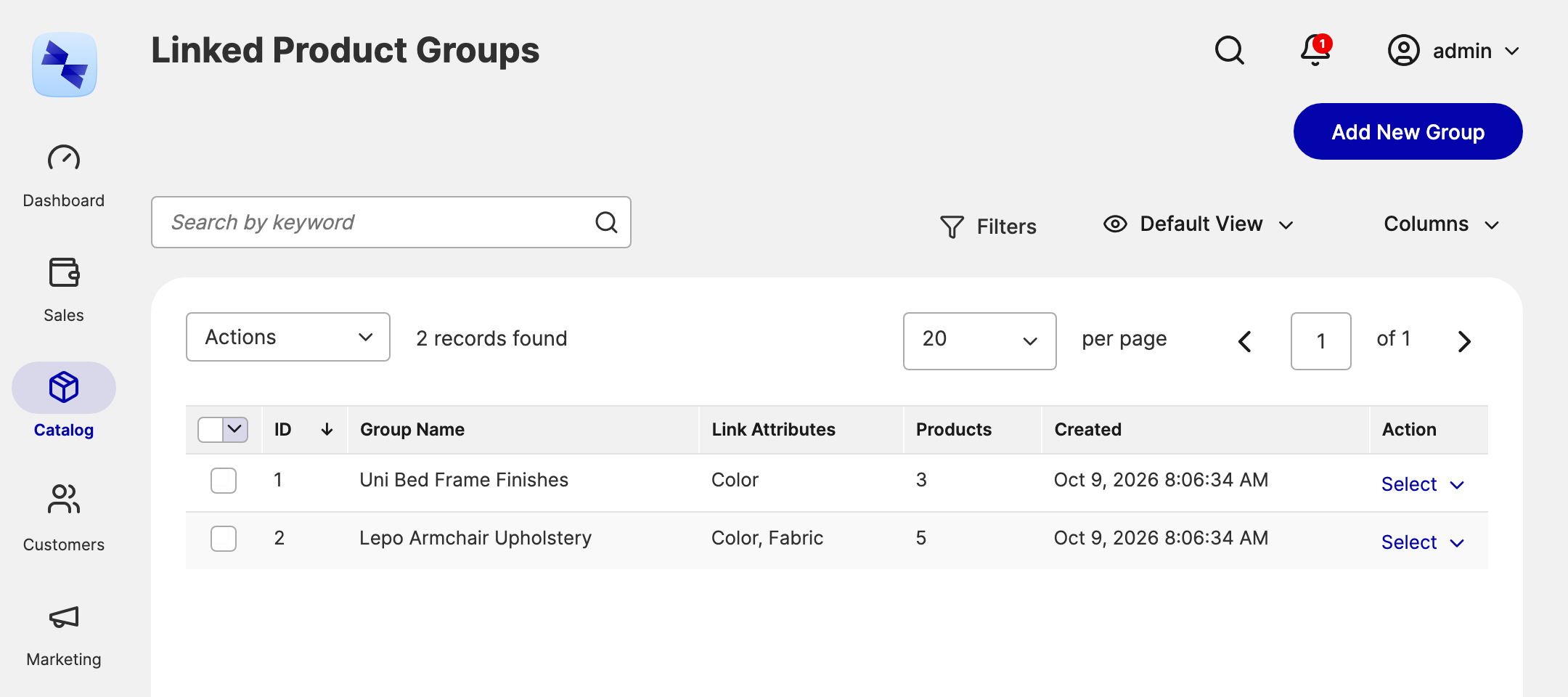
Add New Group opens an empty group form. To export groups, tick them and use Export to CSV in the Actions menu. Imports run on Magento's System → Data Transfer → Import page, see Importing and Exporting Groups.
Creating a Linked Product Group
A group needs a name that no other group has, at least one link attribute to render swatches, and at least two products. Names are compared ignoring case and accents, so Café Chairs and cafe chairs count as the same name.
To create a group:
- Go to
Catalog → Linked Product Groupsin your Magento admin. - Click Add New Group.
- Enter a Group Name. Shoppers never see it, so pick something your team will recognize. It must differ from every other group's name.
- Select one or more Link Attributes, such as Color and Fabric. Each one becomes a row of swatches on the product page.
- In the Linked Products section, click Link Products, tick the products to add in the Add Products to Group panel, and click Add Selected Products.
- Click Save or Save and Continue Edit.
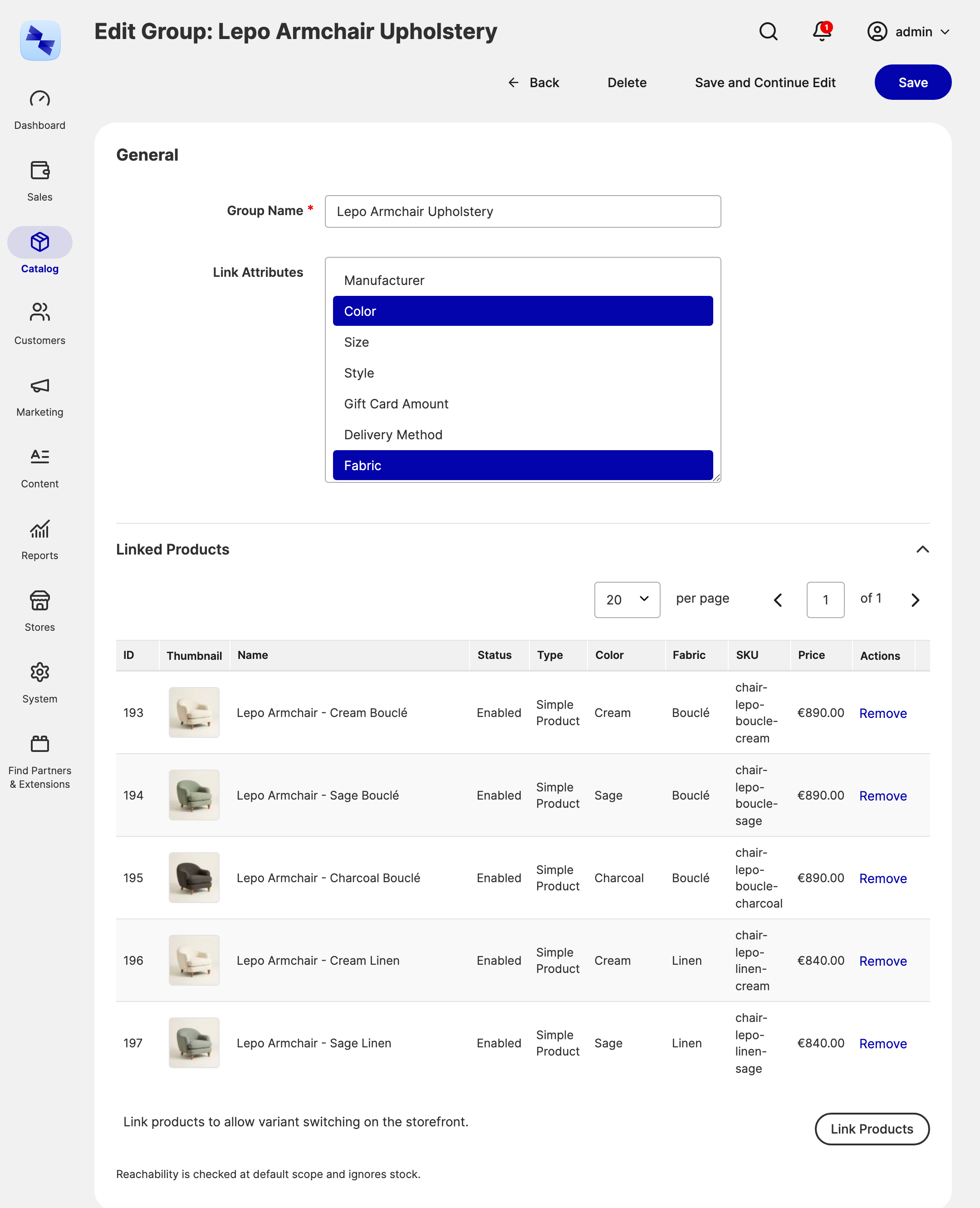
The Linked Products table shows every member with one column per link attribute, so you can check at a glance that each product has the values you expect. Click Remove on a row to take a product out of the group.
Choosing Products for a Linked Product Group
The Add Products to Group panel lists the products that can join the group, with their status, visibility, type, link attribute values, SKU, and price. Products you have already added appear ticked.
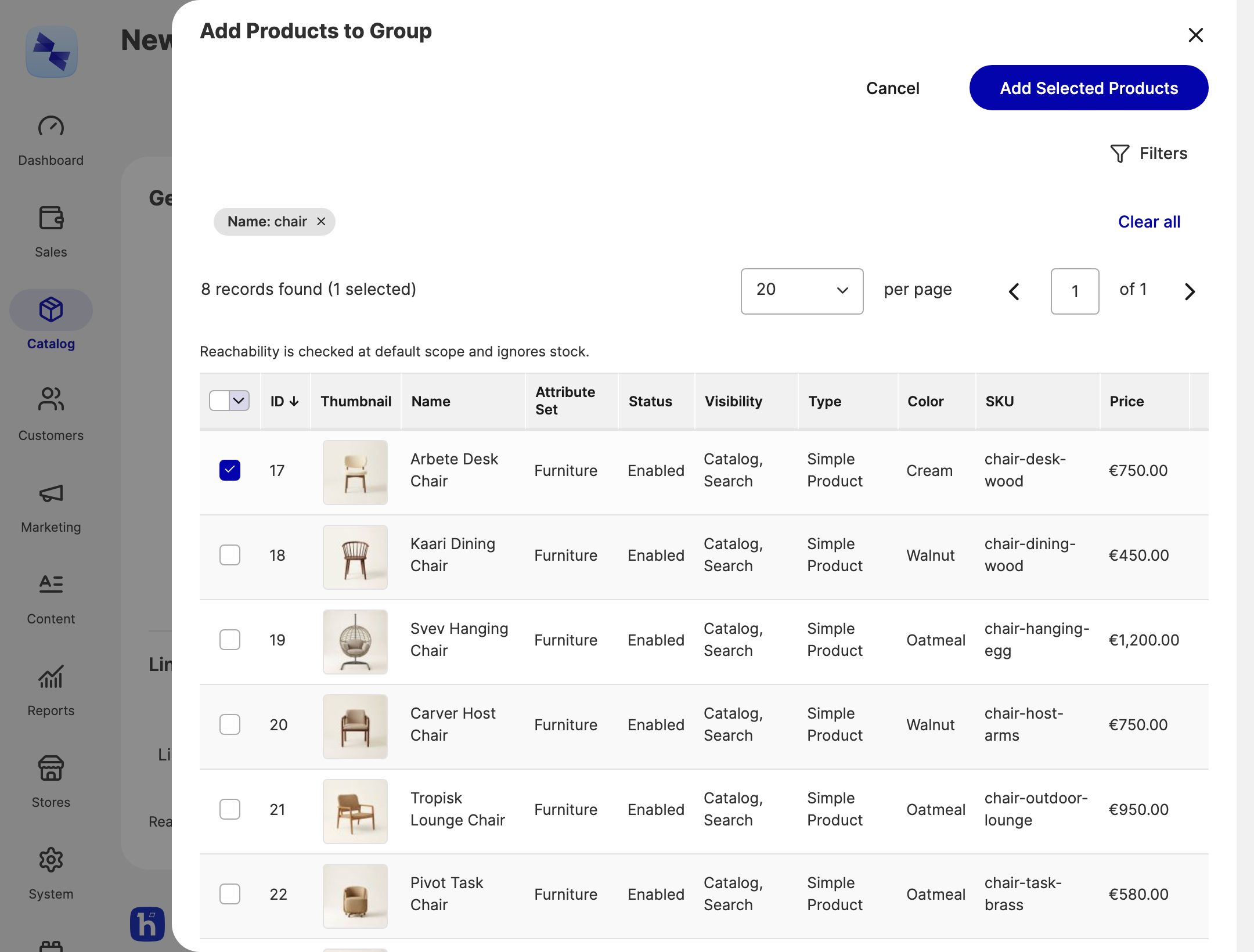
The panel leaves out products that can't join the group:
- Products in another group. A product belongs to one group at most. Remove it from its current group first, or move it with a CSV import (see Moving Products Between Groups).
- Products with Visibility set to Not Visible Individually, because the storefront can't link to them. To link the simple products of a configurable product, set their visibility to Catalog, Search, or Catalog, Search first.
- Products without a value for every selected link attribute. Select the link attributes before you add products, so the panel shows only products that can render a swatch.
A row outlined in red means the product would be unreachable from the storefront swatches once added. See Unreachable Products.
Saving a Linked Product Group
Linked Products checks the whole group when you save. If something is wrong, nothing is saved and the form opens again with your changes and a message saying what to fix, for example:
- the Group Name is empty, longer than 255 characters, or already used by another group;
- the group has fewer than two different products;
- a product was deleted or added to another group while you were editing.
Duplicate value combinations don't block a save. They only produce a warning mark, because the storefront still works, it just can't reach every product.
Editing and Deleting Linked Product Groups
To edit a group, open the Select menu in its Action column and click Edit. Changing a group's link attributes changes them for every member at once.
You can delete groups in three ways:
- Delete in the group's Select menu, or the Delete button on the edit form, deletes one group.
- Delete in the grid's Actions menu deletes the ticked groups.
Deleting a group never deletes its products. They stay in your catalog and are free to join another group.
What Happens When You Delete a Product
When you delete a product, Linked Products removes it from its group. The group itself is never deleted automatically, even when it is left with one product or none: it stays in the grid with its name and link attributes, so you can add products to it or delete it yourself. This applies to every way of deleting a product: the Product Edit page, the product grid's mass delete, the REST API, and a product CSV import with the Delete behavior.
A product left alone in a group still belongs to it, so the group form and other products' Add Linked Products panels can't add it to another group. To free it, delete the group (delete permission), save the product without linked products (create/edit permission, see When the Product Is the Only One Left in Its Group), or import it into another group, which moves it.
A group with fewer than two products can't be saved from the group form until you add products to it.
Related Topics
- Linking Products from the Product Edit Page - the same group, edited from one of its products.
- Unreachable Products - what the red outlines mean.
- Importing and Exporting Groups - create and update many groups at once.