Linking Products from the Product Edit Page
You don't have to leave the Product Edit page to group products. The Linked Products section on every product lets you pick link attributes and link other products, and saving the product creates or updates its Linked Product Group. This page covers that section. For the group grid and group form, see Managing Linked Product Groups.
The Linked Products Section on the Product Edit Page
Open a product from Catalog → Products and expand the Linked Products section, below Search Engine Optimization. It has two parts:
- Link Attributes, with the Product Link Attributes field. These are the group's link attributes, so they are shared by every product in the group, whichever product you edit them from.
- Linked Products, a table of the other products in this product's group, with one column per link attribute.
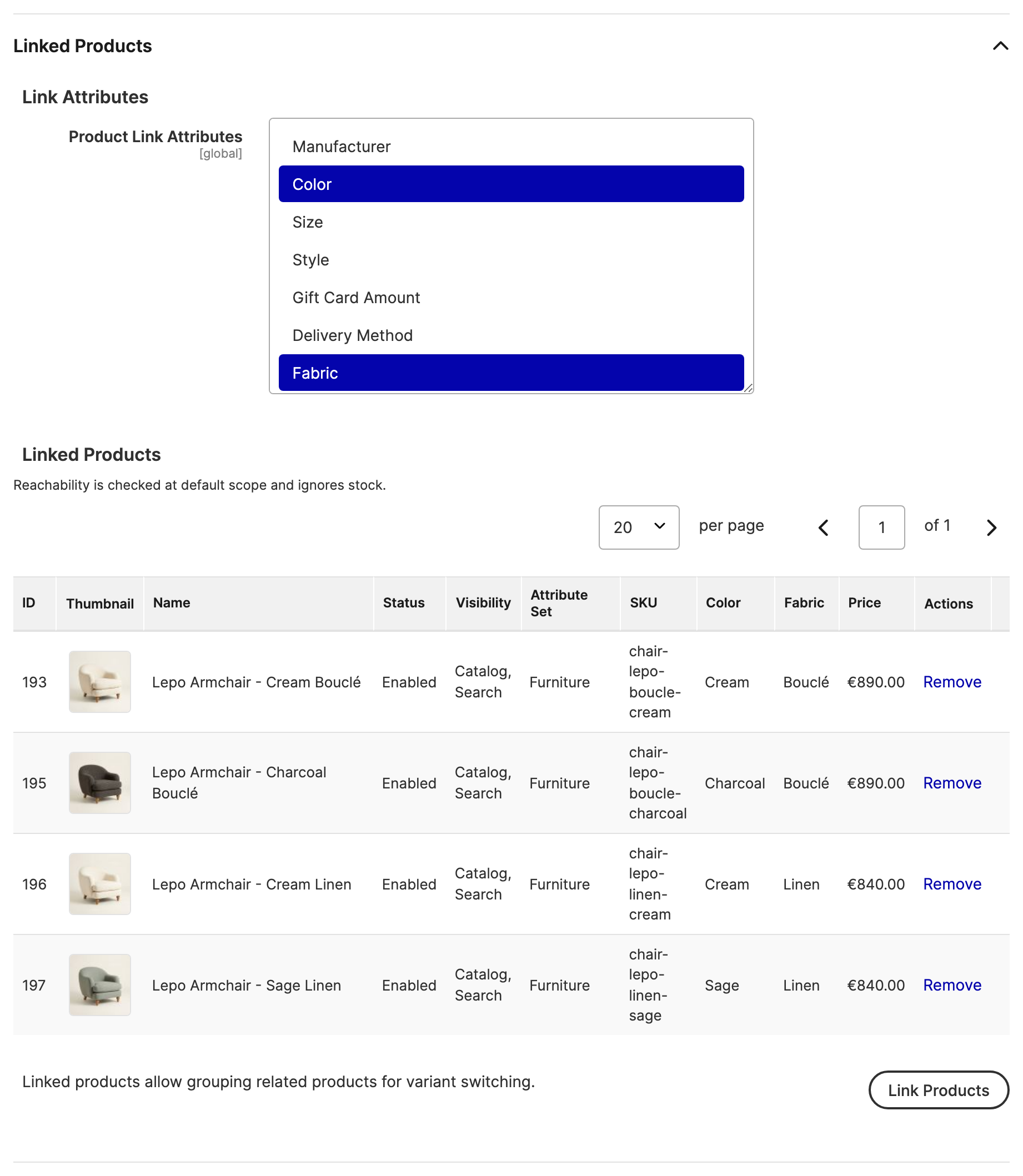
Grouping is global: the section shows the same group in every store view scope, and changes always apply to all stores.
Linking Products to the Product You're Editing
To link products from the Product Edit page:
- Open the product in
Catalog → Productsand expand Linked Products. - Select the Product Link Attributes, such as Color.
- Click Link Products, tick the products in the Add Linked Products panel, and click Add Selected Products.
- Click Save.
If the product wasn't in a group yet, saving creates one named after the product, for example Lepo Armchair - Sage Bouclé - group. If another group already has that name, ignoring case and accents, the product ID is added, for example Lepo Armchair - Sage Bouclé - group - #194. If that name is taken too, a number follows, from Lepo Armchair - Sage Bouclé - group - #194 (2) up to (20). Names are limited to 255 characters, so a long product name is shortened to keep the added ID and number. If all of these names are taken, the group is created without a name, so the product still saves. A group that already has a name keeps it. Rename a group any time from Catalog → Linked Product Groups.
The Add Linked Products panel follows the same rules as the group form: it leaves out products that are already in another group, products that are Not Visible Individually, and products without a value for every selected link attribute.
Removing Products from a Group on the Product Edit Page
Click Remove on a row, then save the product, to take that product out of the group. Removing every row takes the product you're editing out of its group instead, and a notice names the group it left. Either way, the group itself stays, even with fewer than two products left. Delete it or add products to it from Catalog → Linked Product Groups.
When the Product Is the Only One Left in Its Group
A product can be left alone in its group, for example after the other products were deleted. Its Linked Products table is then empty. If you have the Linked Product Groups create/edit permission, the section says so, and any save of the product from this page without adding linked products takes it out of the group, even a save that only changes its price or a store view text. A notice names the group it left. Without that permission, saving never changes the group. Saves that don't come from this page, such as REST, Update Attributes, and product imports, and changes made inside a Scheduled Update, keep it in the group. To keep the product in the group, add linked products before you save. Save & Duplicate is the exception: it keeps the product in its group and adds the copy to it.
Duplicating a Linked Product
When you use Save & Duplicate on a grouped product, the copy joins the original's group if you have the Linked Product Groups create/edit permission. Without it, the copy stays out of the group, and a notice says so. Magento creates the copy disabled and with the same attribute values as the original, so give it its own values, such as a new color, before you enable it. Otherwise the copy is marked unreachable. See Unreachable Products.
The Unreachable Product Banner
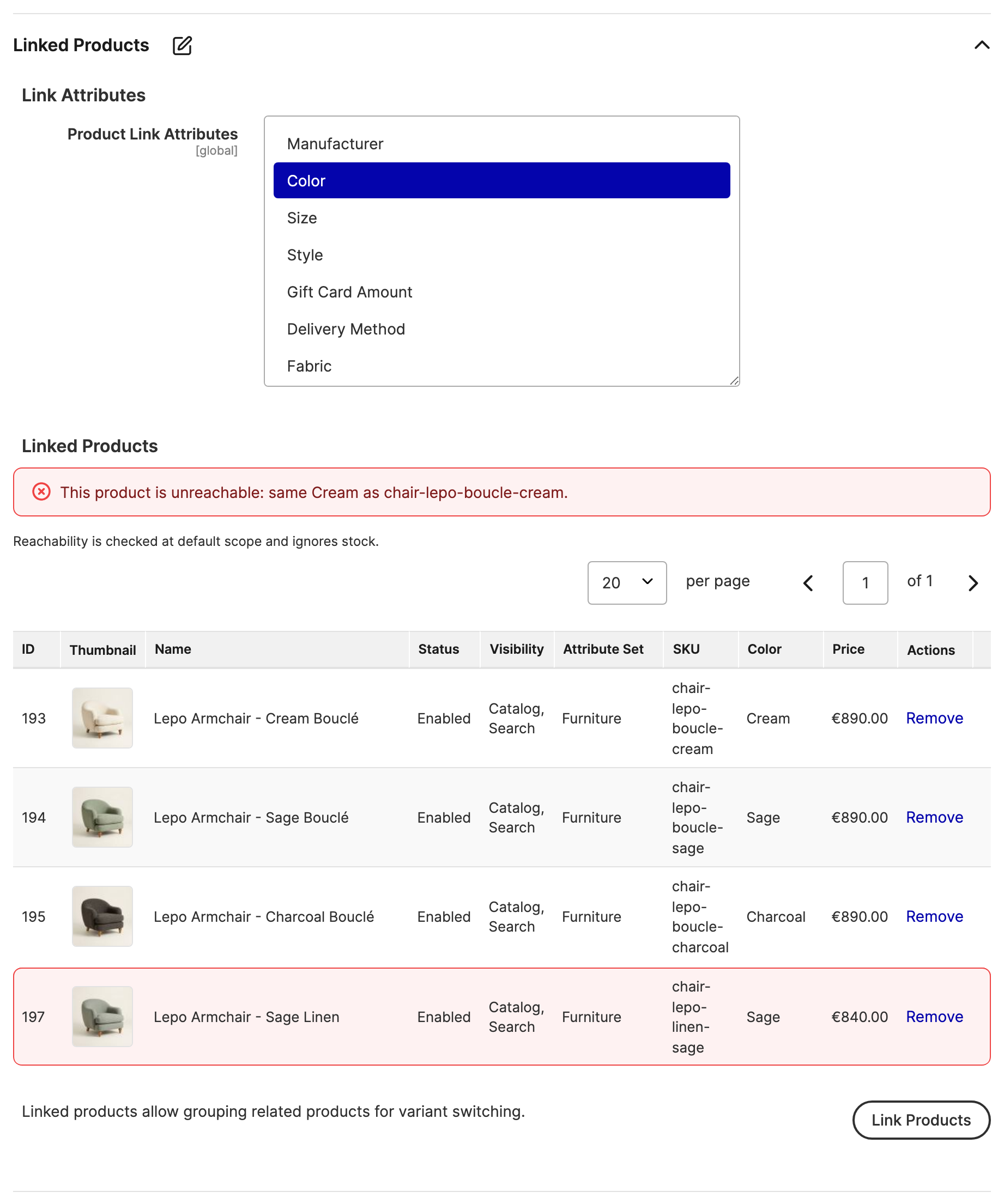
When the product you're editing can't be reached from its siblings' swatches, or isn't on the storefront at all, a red banner at the top of the Linked Products section says why, for example "This product is unreachable: same Cream as chair-lepo-boucle-cream." The banner only appears for products that have linked products or link attributes selected.
When the Product Edit Page Doesn't Change a Group
Some product saves leave grouping untouched on purpose:
- Scheduled Updates (Adobe Commerce). Linked product groups are not staged. Changes to the Linked Products section made inside a Scheduled Update are ignored, while the rest of the staged change saves normally. Edit groups on the live product instead.
- REST, GraphQL, and code. A product save that doesn't come from the Product Edit page form never changes the product's group. To change groups in bulk, use CSV import.
Related Topics
- Managing Linked Product Groups - edit the whole group, rename it, or delete it.
- Unreachable Products - what the banner and red outlines mean.